In Imageshop, you have the option to create your own albums. This allows you to create customized collections of images that are displayed in a separate interface with a unique URL. Note: This is an add-on feature. If you do not have access or would like more information about pricing, please contact us at support@imageshop.no.
How to create an album
- Log in to the administration panel via admin5.imageshop.no.
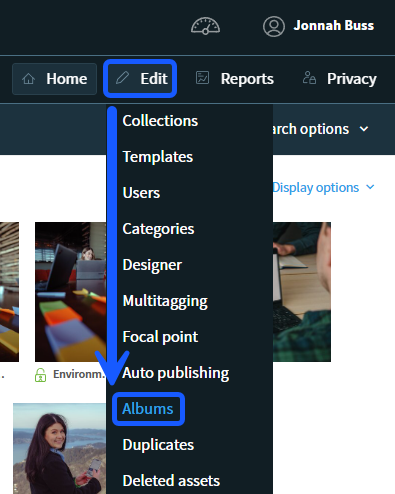
- Go to the main menu and select «Edit» → «Album».
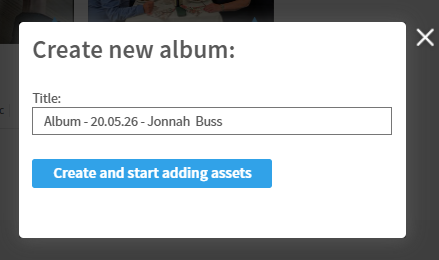
- Click on the «Create new album» button. The album will automatically receive a temporary name based on today's date and your username. Change the name to whatever you prefer, and then click «Create and start adding assets».
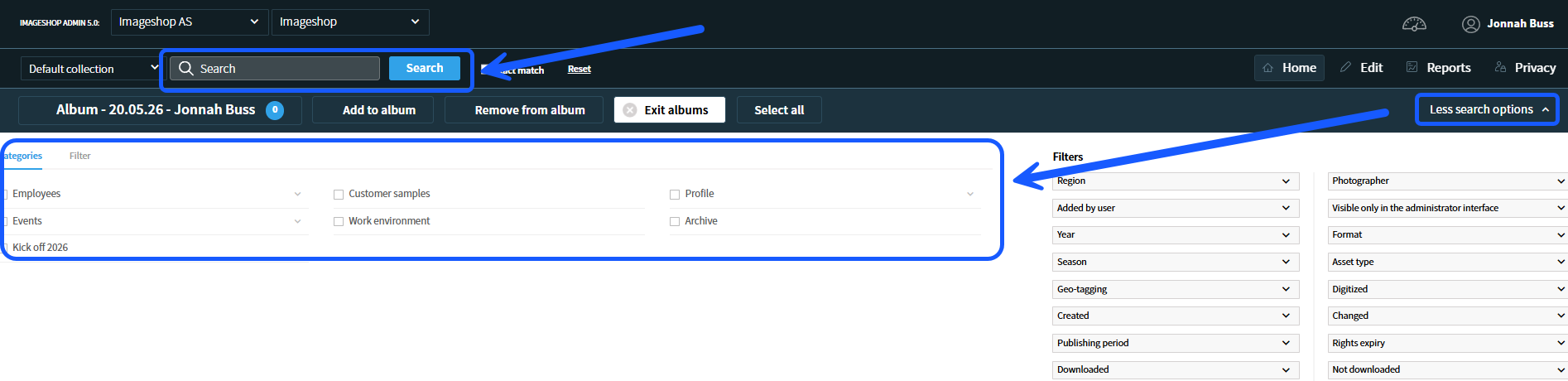
- Use the category tree or the free-text search to locate the images you want to include in your album.
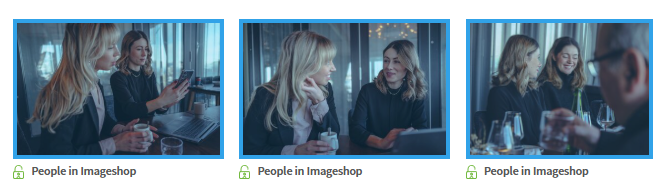
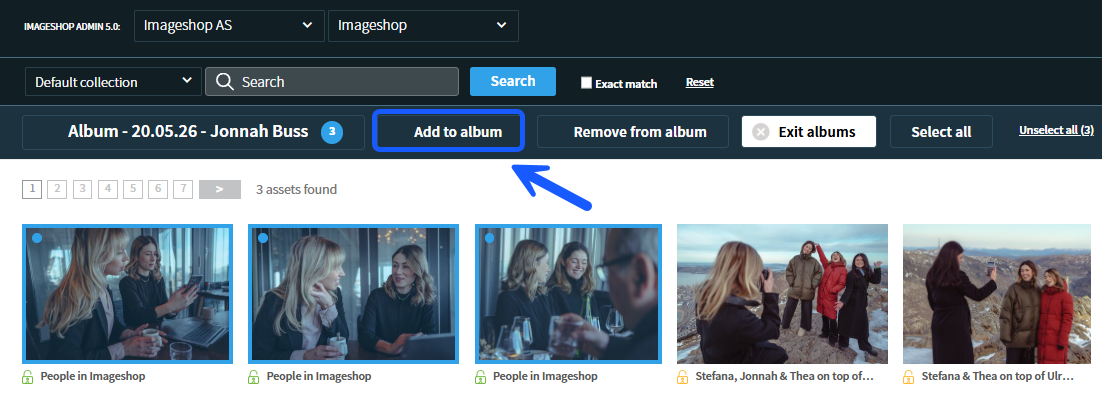
- Click on the images you want to add. Selected images will be highlighted with a distinct blue border around them.
- Click on «Add to album». All images that have now been added to the album will display a blue dot in the top-left corner.
Album settings and description
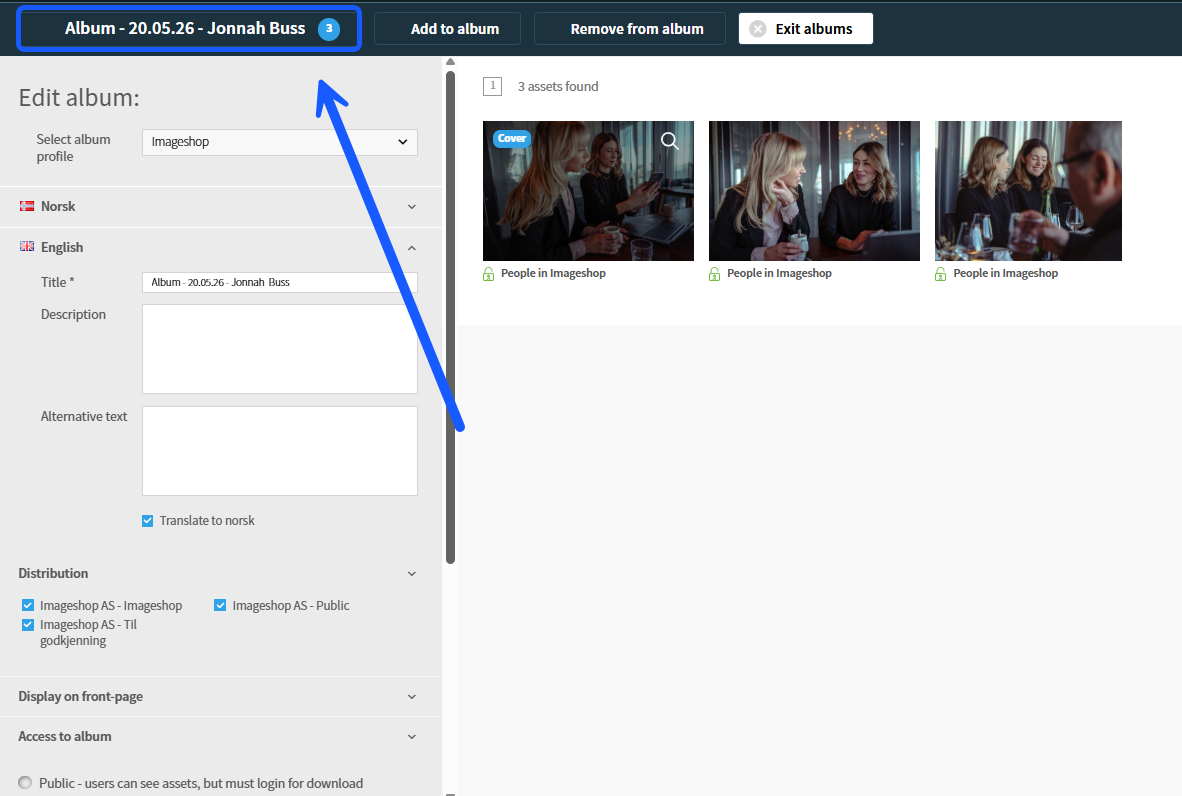
- Click on the name of the album in the top-left corner to open its configuration options.
- Under the «English» tab (or other applicable languages), you can add a title and a description. This text will be displayed at the top of the actual album page.
- Under the «Distribution» tab, select which interface the album should be published to under the «Album» tab in the user interface.
- Under the «Display on front-page» tab, determine which interface front page the album should be displayed on.
- Under the «Access to album» tab, you can decide whether the album should be open to everyone, or if users must log in to view and download the images.
- You can choose a specific cover image for the album: Hover your mouse over the desired image inside the album and click «Cover» so that the button turns dark blue.
- Click on «Save» to save all your settings.
How to view and share the album
When you are inside a created album, you have two option buttons at the top of the screen:
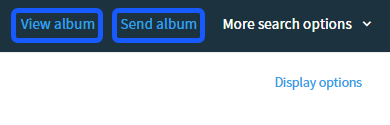
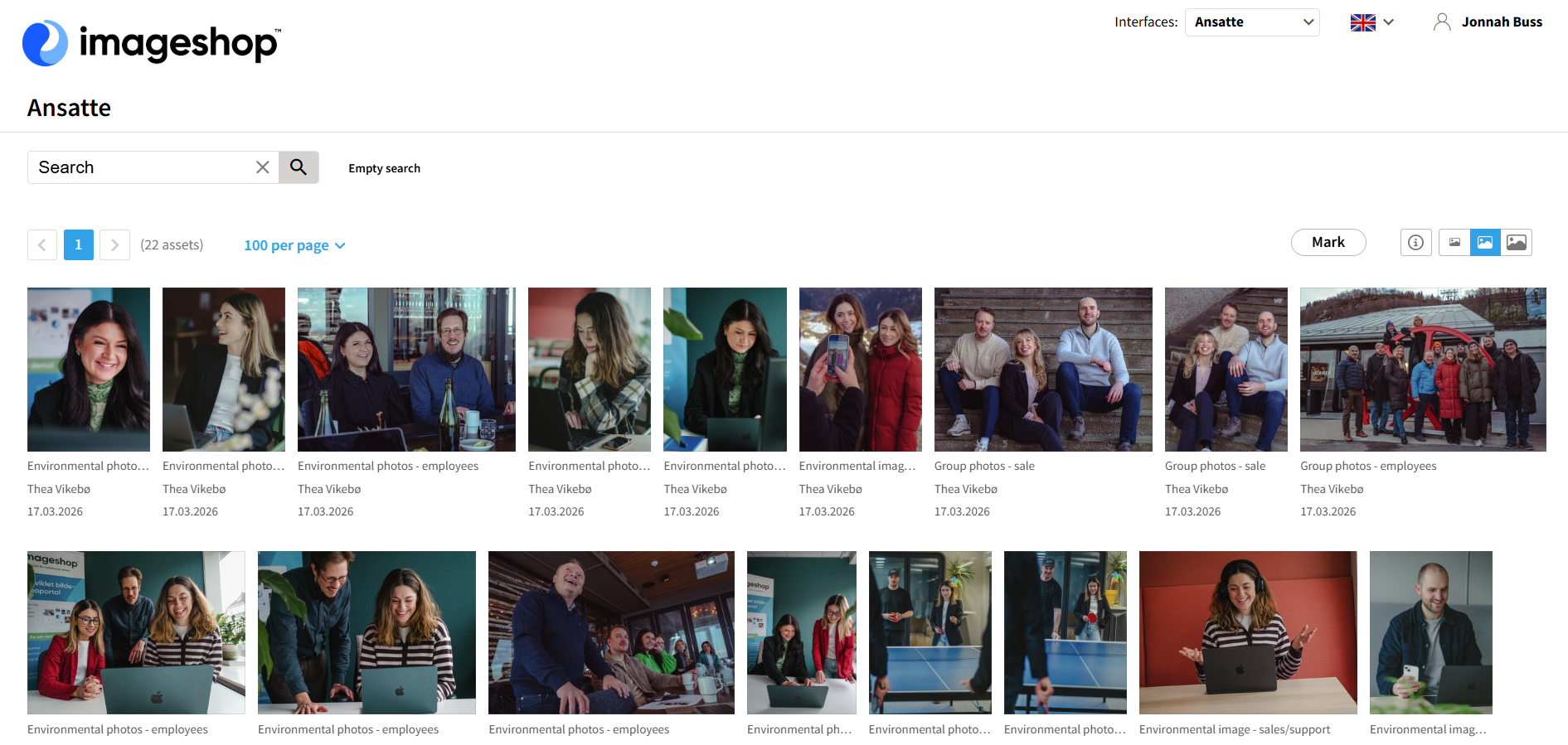
- View album: Click on «View album» to open the unique album page directly in your browser. Here, external users can view, search through, and download the images you have added.
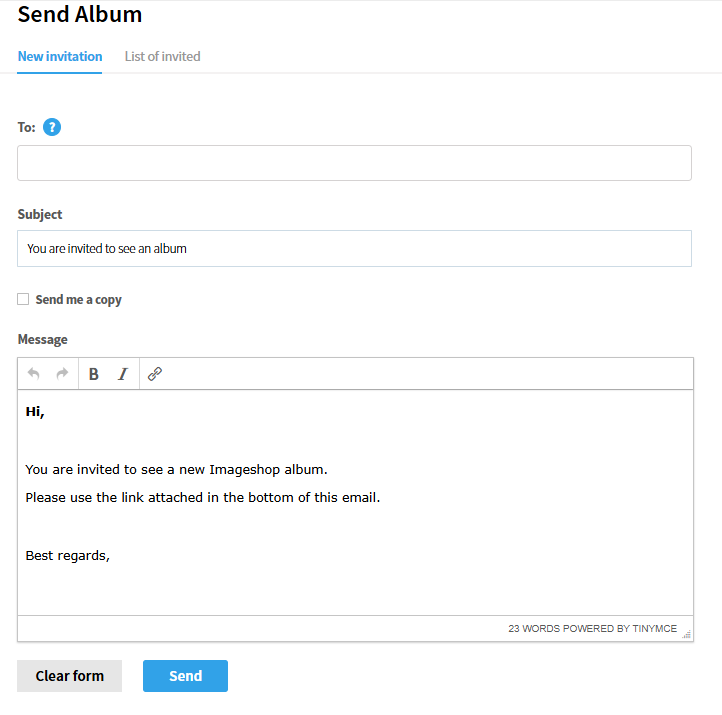
- Send album: Click on «Send album» to share the collection directly via email. Enter the recipients' email addresses, write an optional message, and click «Send». The recipients will receive an email containing a direct link to the album.
To exit the album feature, click on «Close album» at the top of the page. You will then be redirected back to the main dashboard in Imageshop.