You can customize the front page of each individual interface in Imageshop to match your profile and brand. It can often be practical for different interfaces to vary slightly from one another. Depending on the page template you select, you can customize the logo, favicon, banner image, and color palette.
Useful shortcuts for further configuration:
- How to change the logo and banner
- How to change text and names in the menu structure
- How to change colors on buttons and menus
Choose between different templates
Imageshop offers several different front page templates based on how you want users to experience the image bank. Here are a few examples of setups:
- Category-driven entry: Uses categories as the primary gateway to the search page (see example: Riksteatret).
- Banner with categories: Combines a large banner image at the top with strategic categories for navigation directly below (see example: Copenhagen Admiral Hotel).
- Banner with selected albums: Features a banner image at the top and highlights specific, selected albums at the bottom (see example: Deichman).
Important information about categories on the front page
If you choose a template that displays categories on the front page, it is important to be aware of the following rule: You MUST select a unique image for each individual category that is to be displayed. If a category lacks an image, it will automatically be hidden from the front page.
→ See the user manual for how to select and change category images here.
How to select and configure a front page template
- Log in to the administration panel.
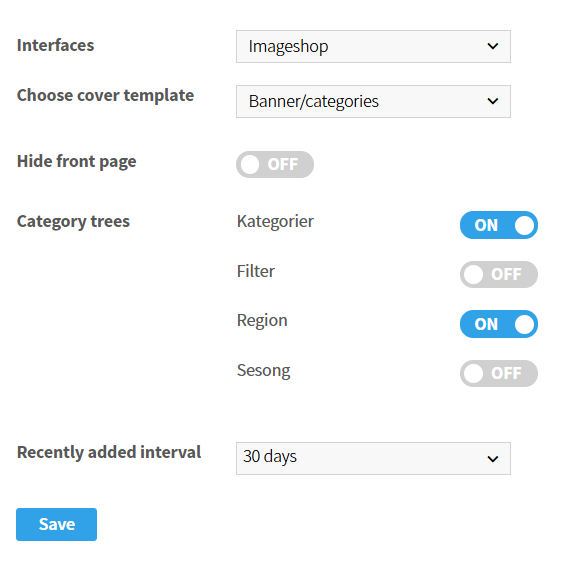
- Go to «Configuration» → «Cover template» in the menu.
- Select the interface you want to configure from the top drop-down menu.
- Select the desired template in the «Choose cover template» field. *(Note: If you want users to go directly to the search page without a landing page, enable the option «Do not show front page»)*.
- Under «Category trees», choose the category tree you want to source the front page titles and images from.
- If the selected template supports displaying the most recently added files, choose your desired time interval under the recently added files section.
- Click on «Save» to save your changes.
Activate and roll out the changes
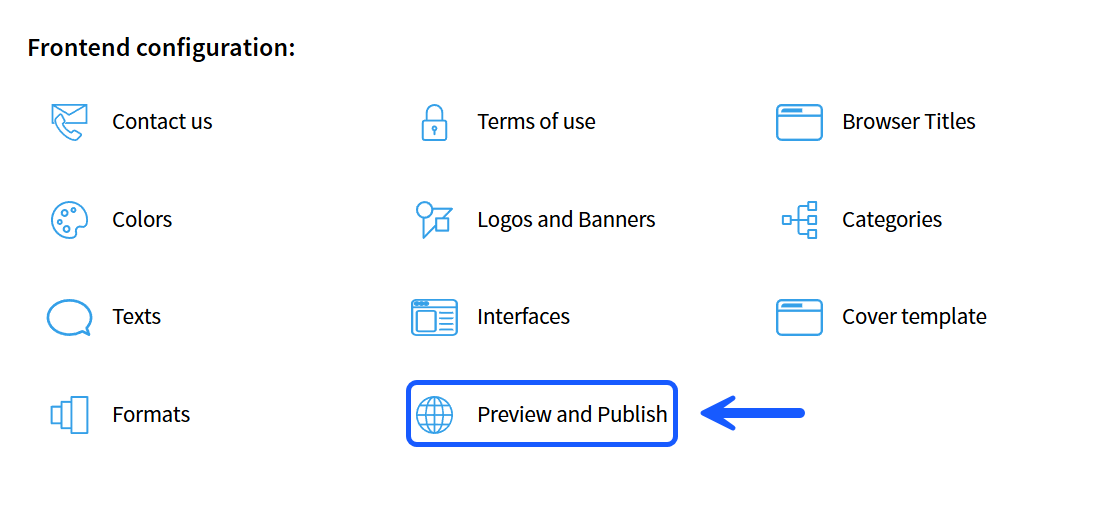
Just like with other structural changes in Imageshop, you must go to «Preview and publish» and publish the relevant interface again before the changes become visible to the end users.