In Imageshop, an album is a collection of files that can easily be shared with external recipients or colleagues via a unique web address (URL). The album acts as a simplified and user-friendly interface where the recipient can search for and download the selected content.
Access levels for albums:
- Intern: The user must log in to see and download the content.
- Public: Anyone with the link can see the content, but they must log in to download.
- Full public: Anyone with the link can freely see and download the content without logging in.
Note: Album is an additional module. If your company wishes to activate this functionality, please contact us at support@imageshop.no for further information.
How to find and share an album in the frontend (user interface)
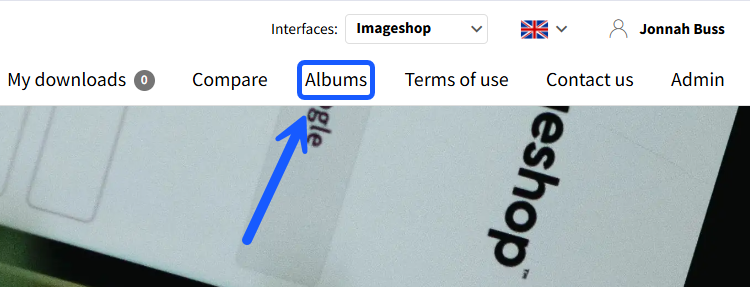
You can find a complete overview of all created albums by clicking on the «Albums» tab in the main menu at the top of the page.
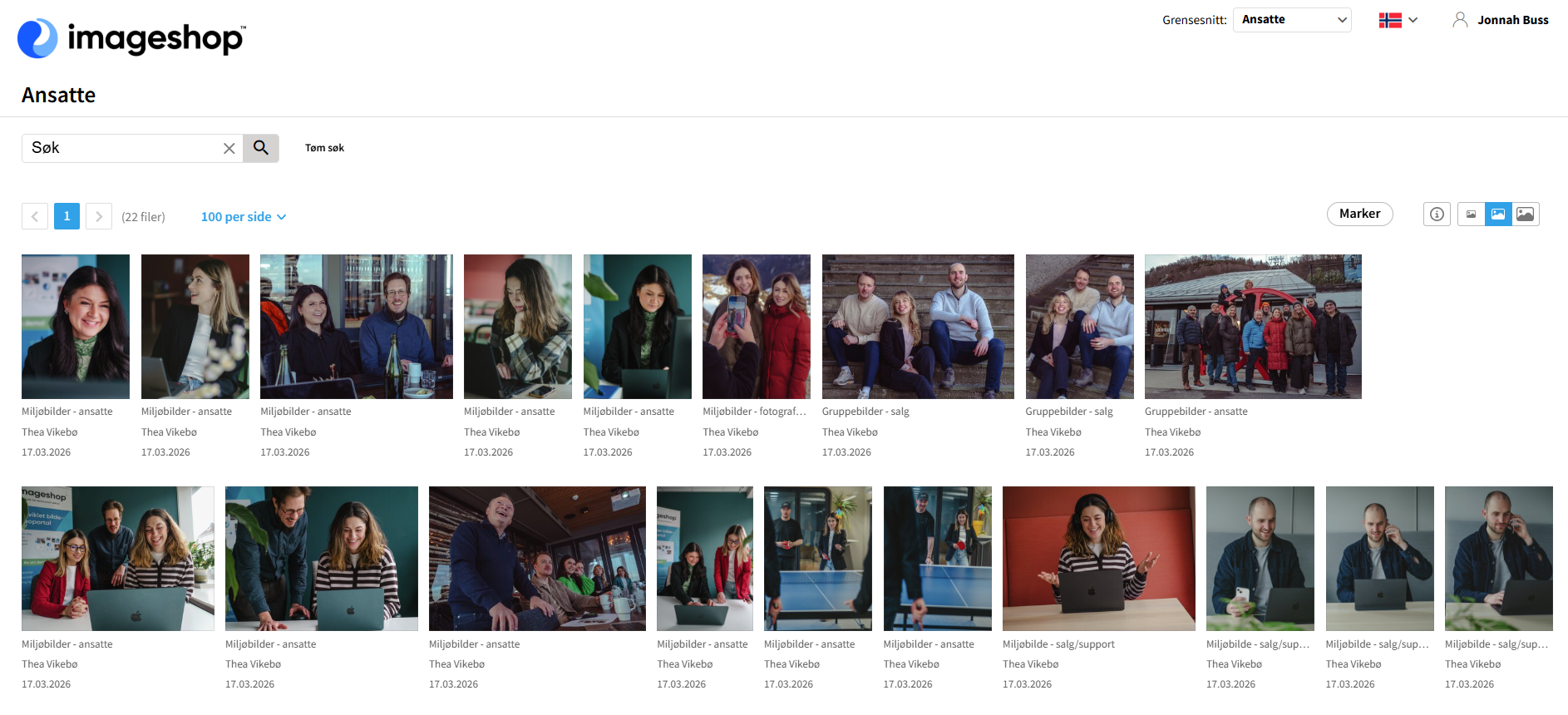
If you are looking for a specific album, you can use the free text search box at the top of the overview to filter the list. Click directly on an album to open it. To share the album, simply copy the URL from your browser's address bar and send it to the recipient. Important: Remember that the album's access level must be set to «Full public» if you are sharing it with external people who do not have a user profile in your image bank. Otherwise, they will be prompted to log in.
View the access status of the albums
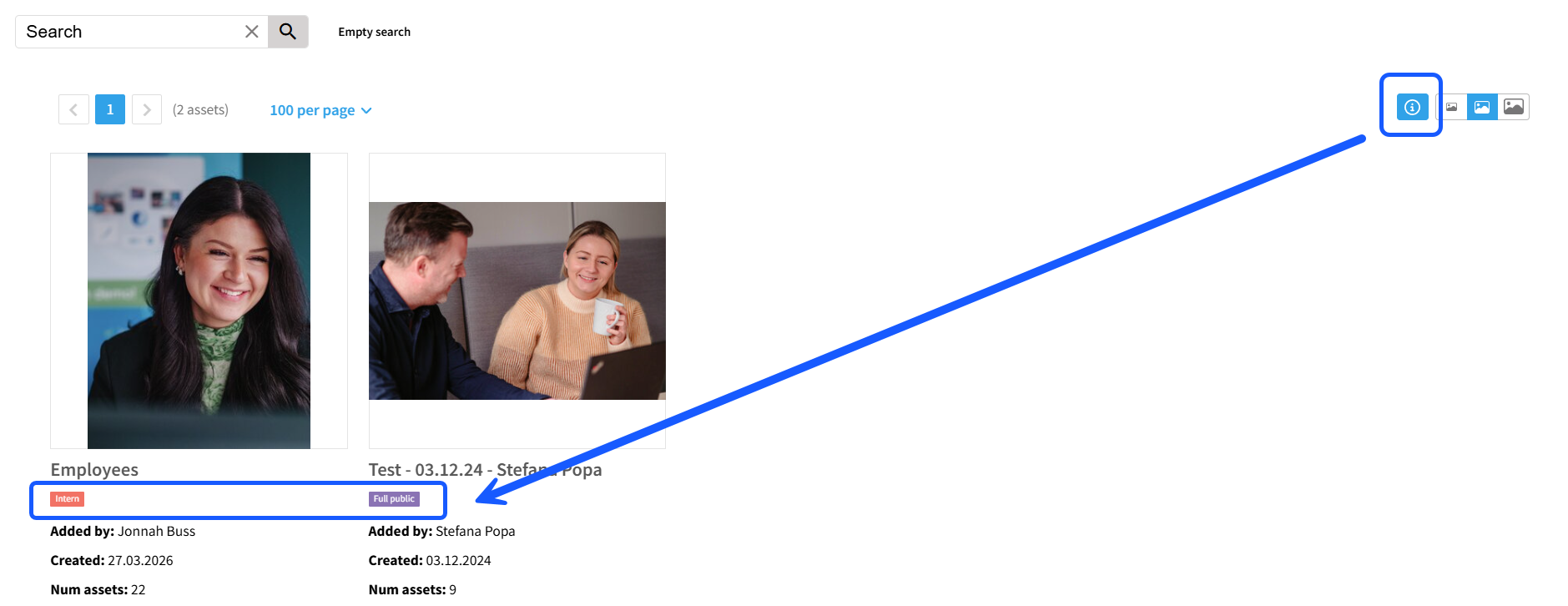
You can quickly check the access rights of an album directly from the overview by clicking the «i» icon (information) on the respective album. The access status and other key information will then appear as a visible information line below the album.
How to find and share an album in the backend (admin)
If you need to create, change permissions, or retrieve sharing links for an album as an administrator, follow these steps:
- Log in to the administration panel (admin).
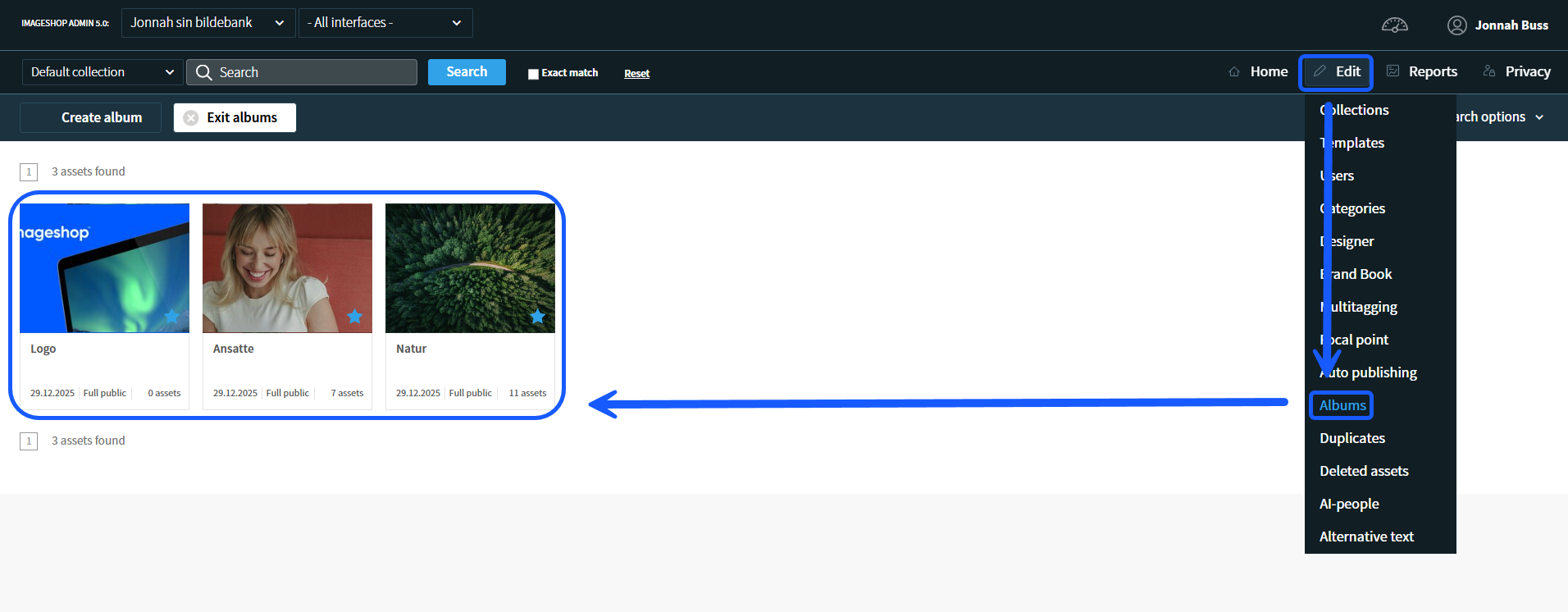
- Go to the main menu, click on «Edit» and select «Albums» from the drop-down menu.
- Click on the specific album you wish to manage from the overview list.
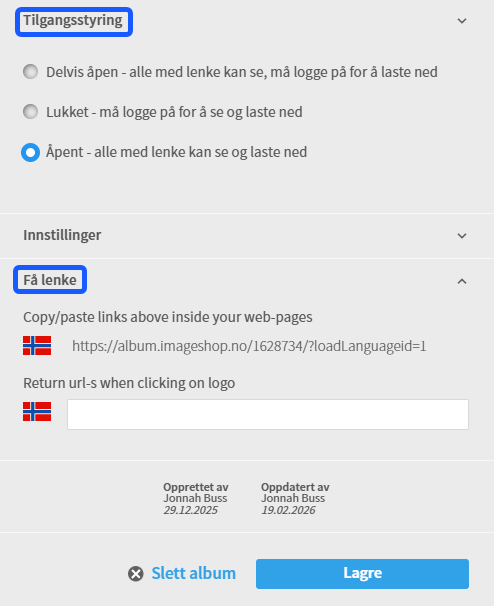
- Scroll down the settings menu on the left side. Here you define the album's access level and determine the rules for how users can view and download the content.
- Click on «Save» to activate your changes, and find the link under «Get link» to copy the sharing address to distribute.