In Imageshop, it is possible to give consent to the use of files on behalf of another person. This can be used, for example, when a parent or guardian needs to provide consent for a child, or when an adult has a guardian.
When registering a consent person, the administrator/editor can specify whether the person gives consent on their own behalf or whether consent is given by a guardian.
How to register a consent person with a guardian in Admin
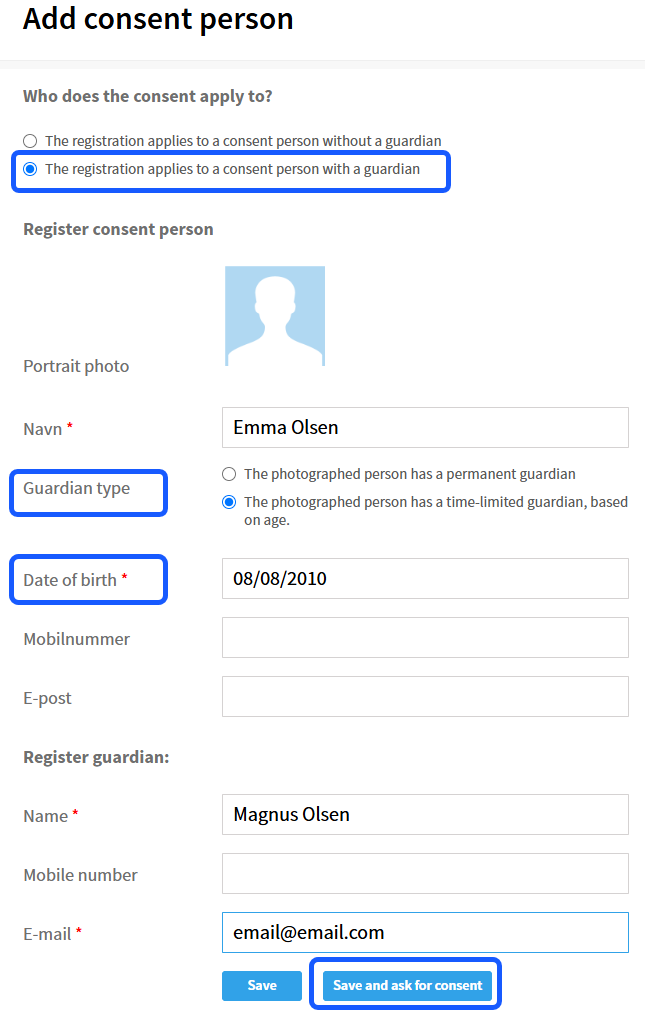
An administrator can register a consent person and their guardian directly from the consent registry:
- Log in to the administration panel (Admin).
- Click «Privacy» in the menu and select «Consent persons».
- Click «Add consent person».
- Select «The registration applies to a consent person with a guardian».
- Enter the required information about the consent person and their guardian.
- Select the type of guardian.
- Click «Save» to register the person without sending a consent request, or «Save and ask for consent» to send the consent form by email.
Date of birth
If a guardian is required because the consent person is under the configured age limit, the consent person's date of birth must be entered.
If the consent person has a permanent guardian, the date of birth field is not displayed.
How to add a consent person with a guardian when uploading files
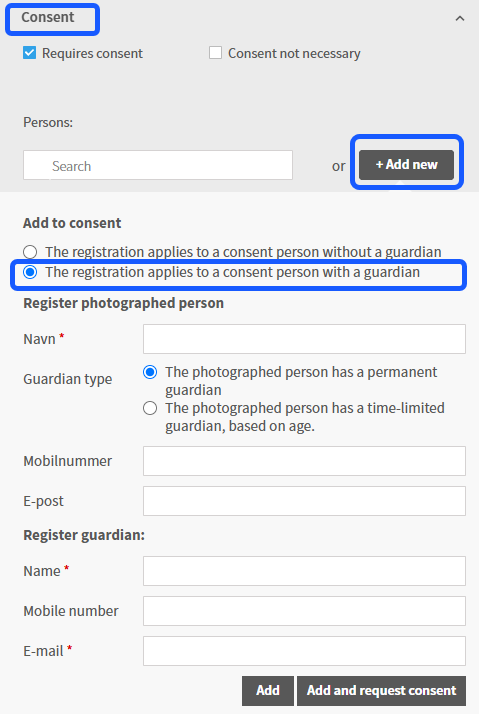
An administrator can also add a consent person and their guardian while uploading files in Admin:
- Go to «Upload assets» in the administration panel.
- Go to the «Consent» section.
- Add a new consent person.
- Select «The registration applies to a consent person with a guardian».
- Enter the required information about the consent person and their guardian.
- Select the type of guardian.
- Add the person and continue the upload.
The same functionality is available through front-end upload for organizations that have this module enabled.
How to give consent on behalf of another person using a consent form
A consent form can be sent by email or shared without registering the person in advance, for example by sending a link or sharing a QR code.
When opening the form, the person completing it will first be asked whether they are giving consent for themselves or on behalf of another person.
If they are giving consent on behalf of another person, additional fields are displayed. The guardian must:
- Select the type of guardian.
- Enter the required information about the person the consent applies to.
- Enter the required information about the guardian.
- If applicable, enter the consent person's date of birth.
- Complete and submit the consent form.
Overview and filtering
Administrators can see whether a consent person is registered with or without a guardian. They can also filter the consent register and files based on guardian information.
How to view and filter guardian information in the consent register
- Log in to the administration panel (Admin).
- Go to «Privacy» → «Consent persons».
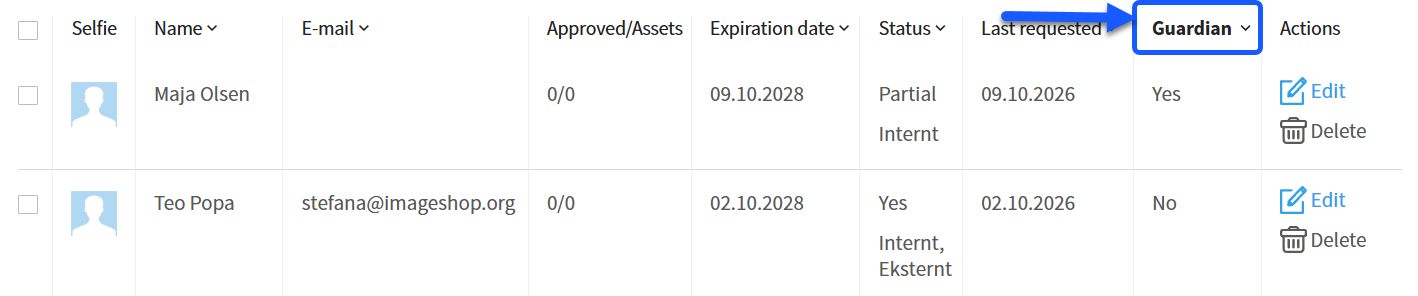
- A column called «Guardian» shows whether each consent person has a registered guardian.
- To filter the list based on guardian information, click the arrow next to the «Guardian» column heading.
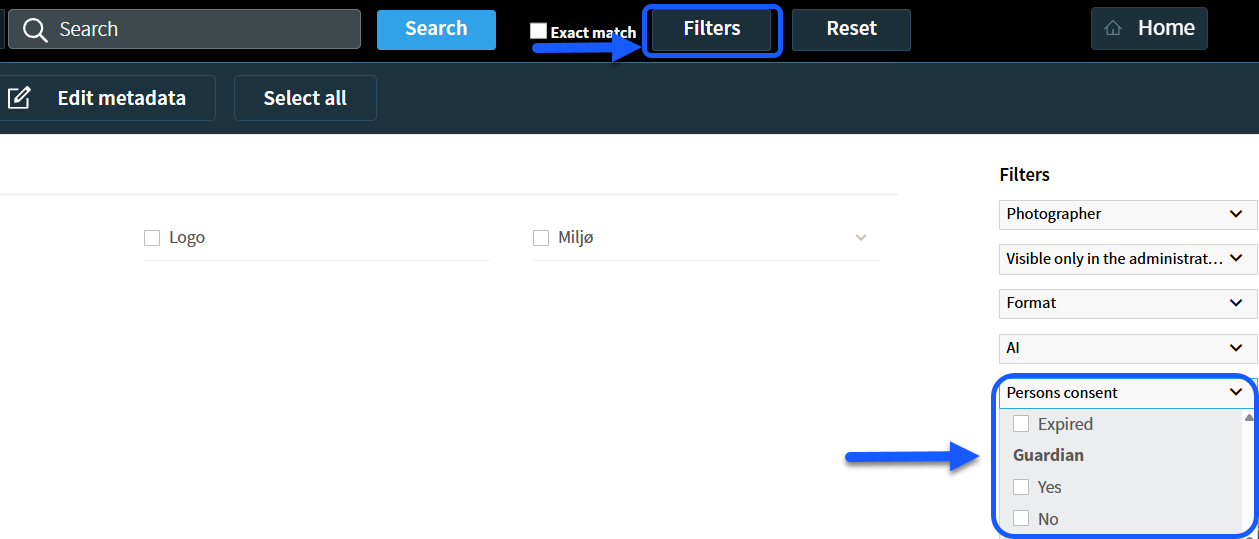
How to filter files based on guardian information
In the administration panel (Admin), you can use filters to find files based on guardian information. After selecting whether you want to search for images with or without guardian consent, remember to click the «Search» button.