In this article, you will learn how to edit the brand book in Imageshop so that it is tailored to the needs of your organization and ensures that your brand is presented in the best possible way.
This article has three parts:
- Introduction to editing mode
- How to add or edit a chapter
- How to add a new toggle section
Introduction to editing mode
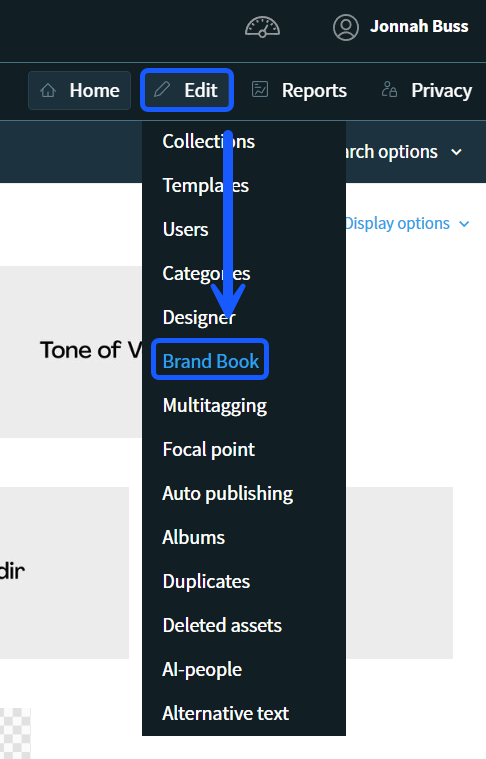
- To access the brand book, you must be logged into the administration panel. Go to the main menu, click on «Edit», and then select «Brand book».
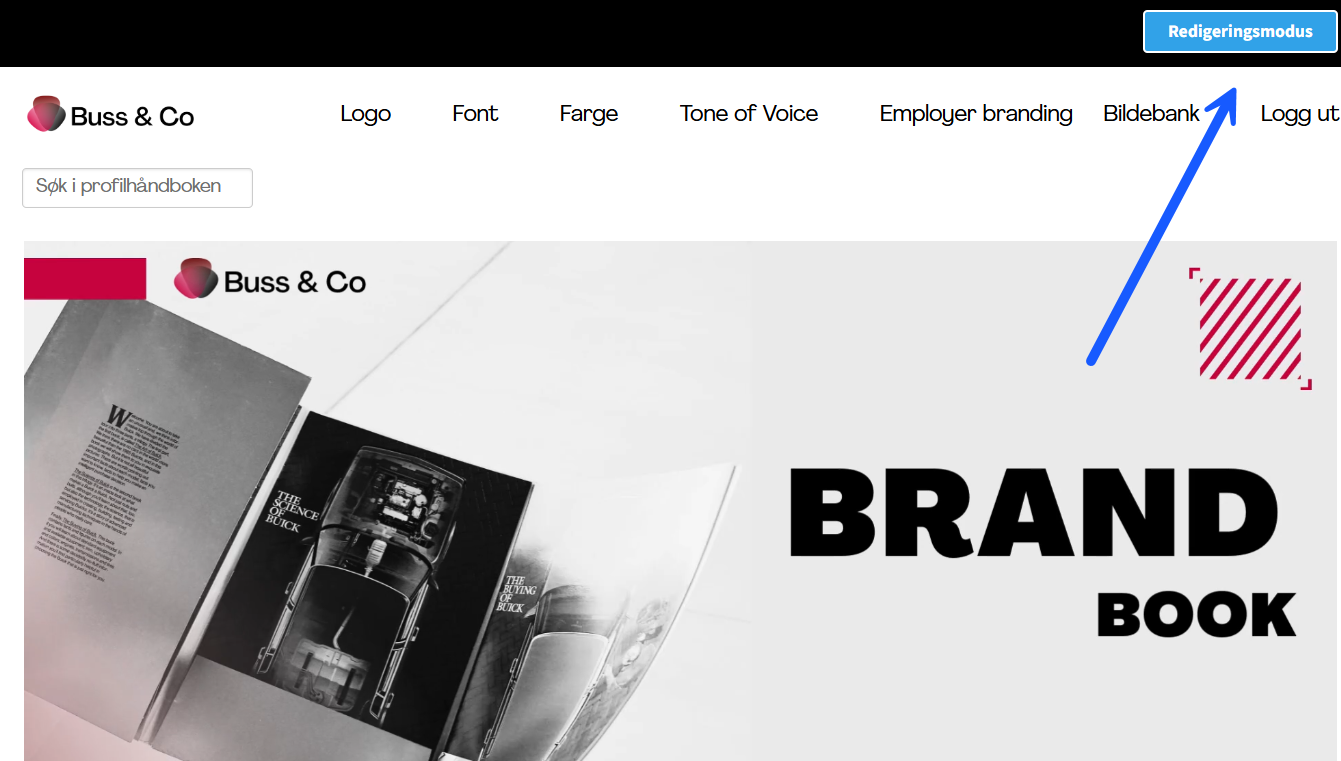
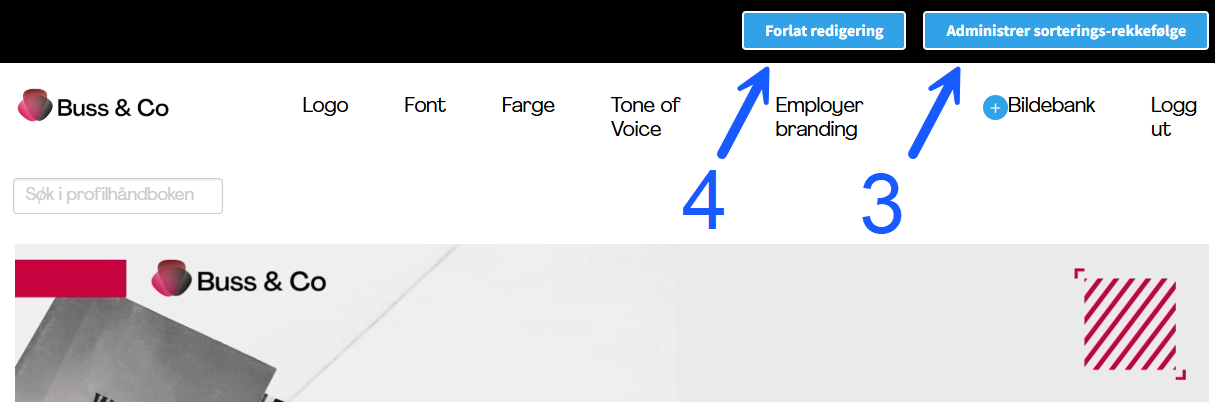
- Once you have opened the brand book, click the «Editing mode» button at the top of the page.
- While in editing mode, you can make changes to the existing chapters in the brand book (1) and add a completely new chapter (2). You can also change the sorting order (3). Clicking this button opens a window where you can rearrange the order of the chapters using drag-and-drop. When you are finished editing the brand book, you can exit the mode by clicking on «Leave editing» (4).
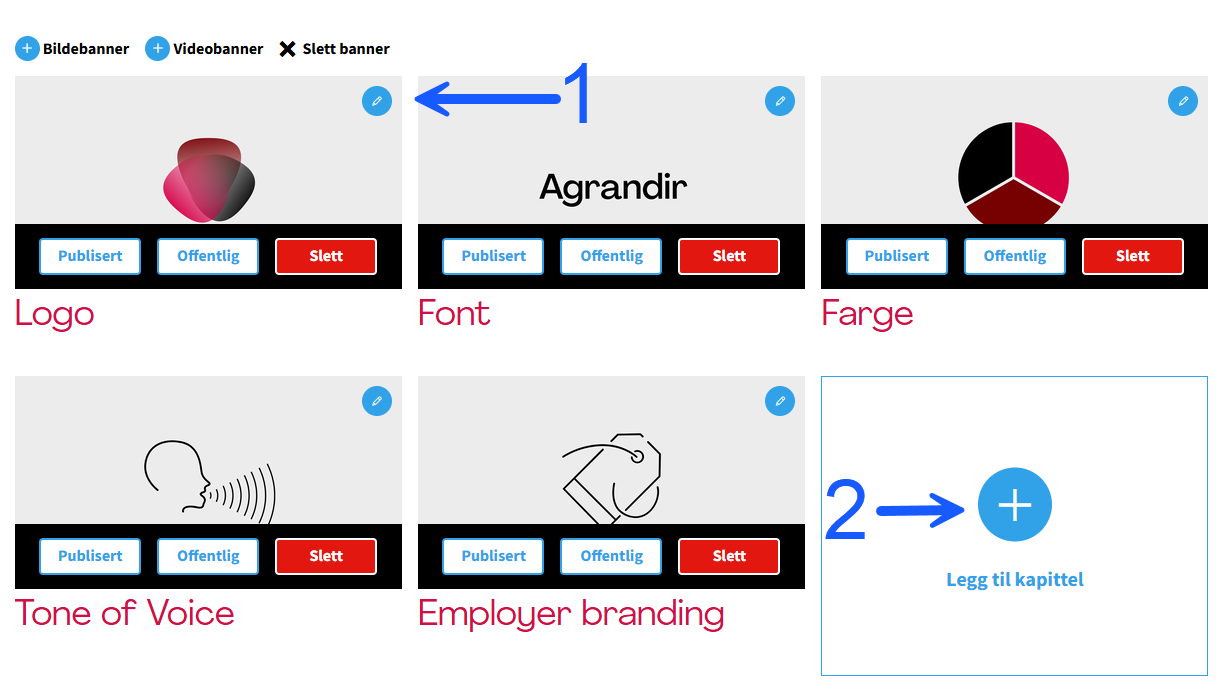
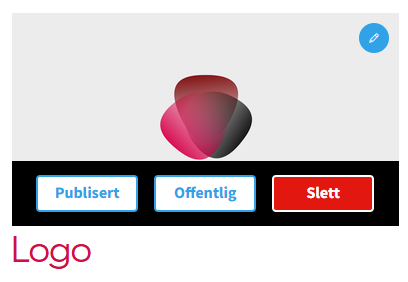
- For each individual chapter, you can perform several actions. You can publish and unpublish the chapter, and you can decide whether it should be public or private. Chapters set to public will be visible to everyone – which is useful if your organization wants an open, external brand book. Private chapters will only be visible to logged-in users. You can also delete chapters and edit them.
How to add or edit a chapter
Whether you choose to add a completely new chapter or edit an existing one, the same configuration window will open.
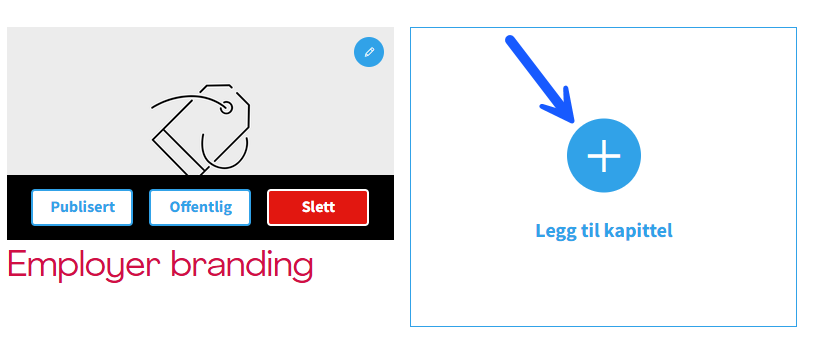
Step 1A: Adding a new chapter: Click on the button labeled «Add chapter».
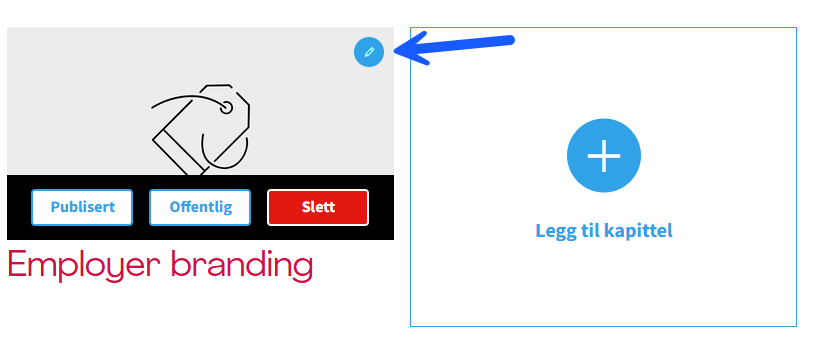
Step 1B: Editing a chapter: Click on the editing symbol (the pencil icon) on the relevant chapter.
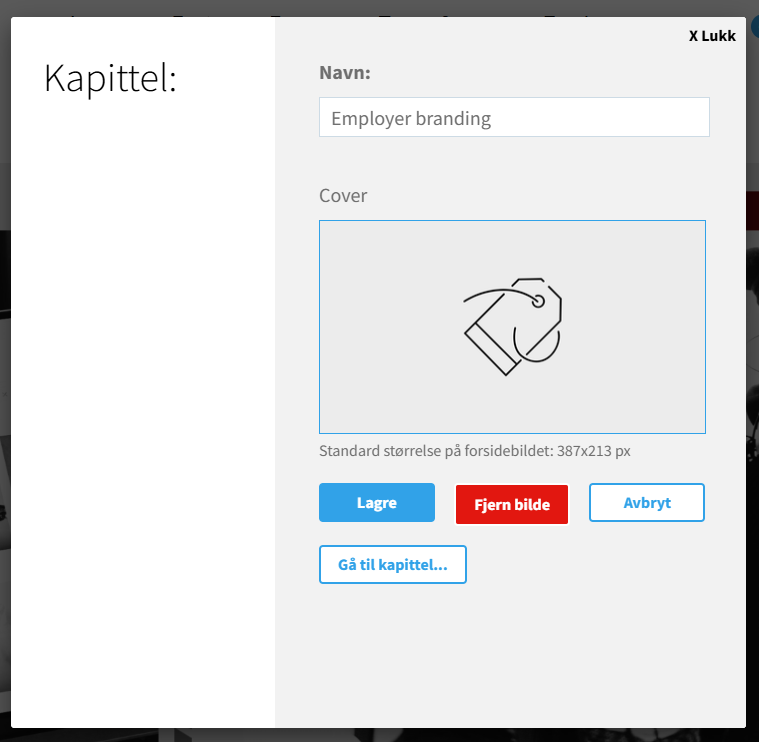
- In the window that opens, type in the name of the chapter and add a corresponding cover image. To change an existing cover image, click directly on the image; a new window will open where you can select a new motif from the image bank. Once the name and image have been added or updated, click «Save».
If you need to make changes to the actual content of the chapter, click on «Go to chapter...». Note: You can also edit the content of a chapter by navigating directly to that chapter in the brand book using the standard view, and then clicking on «Editing mode» at the top of the page. The system will always allow you to edit the specific page you were viewing when you activated editing mode.
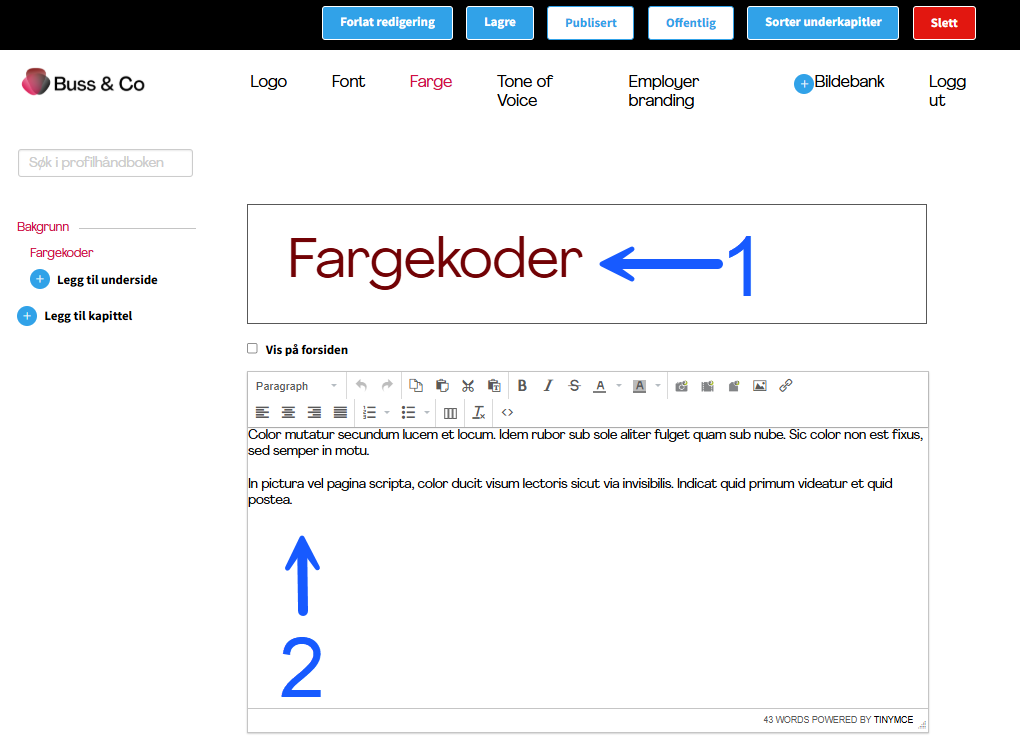
- When editing inside a chapter, you can modify the chapter heading (1) and the main body content (2). While formatting the content, you also have the option to insert images, videos, and document files. Videos must be uploaded to Imageshop beforehand.
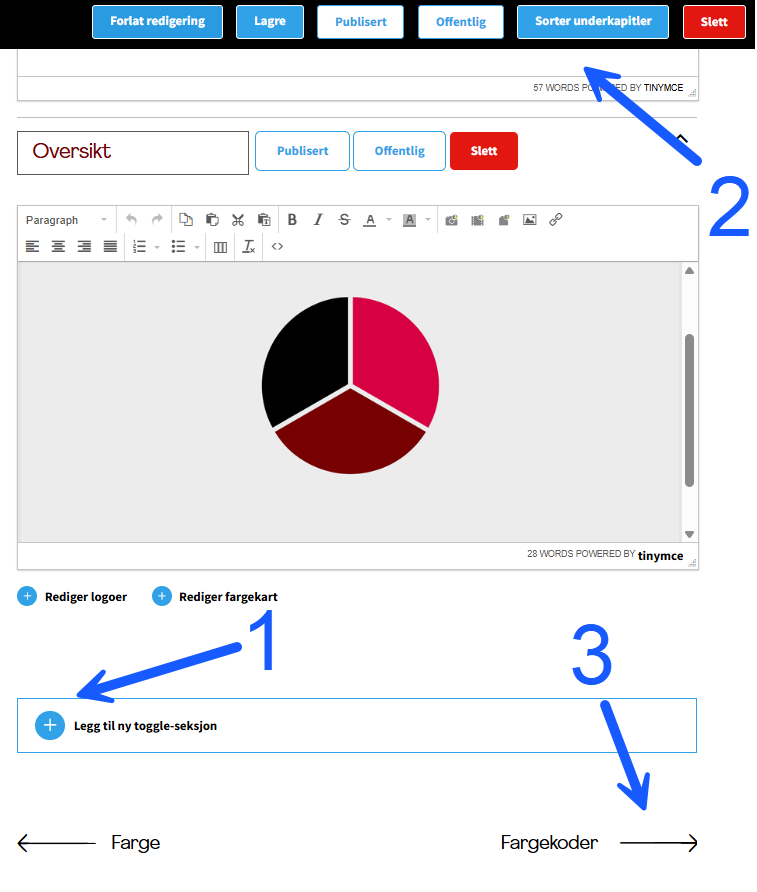
Additionally, you can create a toggle section (1), which is described in more detail in the section below. When you are finished editing, you can manage the status and visibility of the chapter via the toolbar at the top of the page (2). Here you can save changes, delete the chapter, publish or unpublish it, and define whether the page should be private or public. At the bottom of the page, you can skip directly forward to the next chapter in line (3).
How to add a new toggle section
A toggle section is a content block containing text, color codes, logos, or images that users can expand and collapse by clicking on the header.
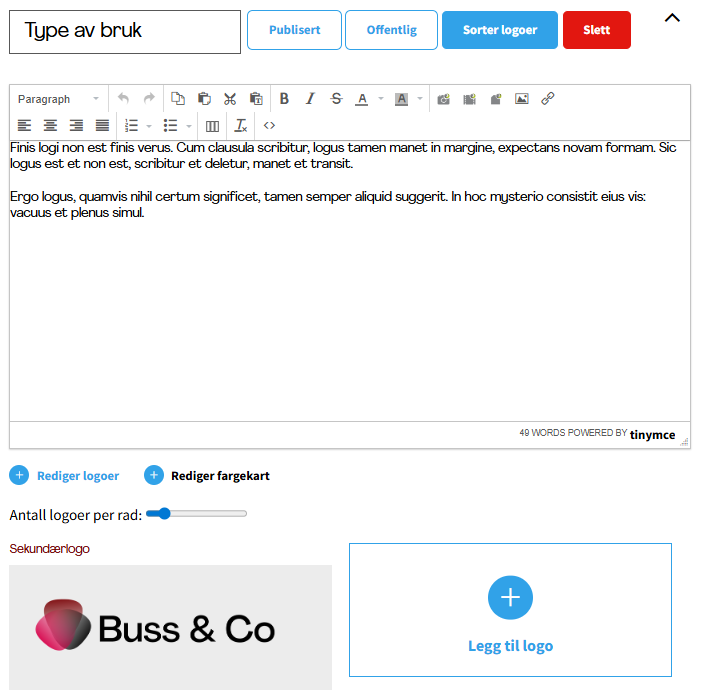
- When creating or editing a toggle section, you can customize the header, body text/content, and upload associated brand logos. Via the menu, you can define whether the toggle section should be private or public, publish your changes, sort the sequence of the logos, or delete the entire section if desired.