In Imageshop, you can use Artificial Intelligence to automatically generate alternative text for your images. This ensures compliance with accessibility standards and improves SEO. To utilize this function, the AI module must be activated for your solution. Please contact us at support@imageshop.no for further information.
AI-generated alt text is automatically added to uploaded images, though it may take a few minutes for the text to appear. For our systems to generate an alt text, you must leave the alt text field completely empty during upload, as the AI will never overwrite manually written alt texts.
To ensure high quality, we recommend always verifying the AI-generated alt text. The system provides two simple ways of doing this: either directly on the individual image view or in bulk from the admin front page.
Method 1: Verify alt text when editing an image
This is the ideal approach when reviewing and fine-tuning details on a single image asset.
- In admin, find the image you want to edit and click on it to open the editing view.
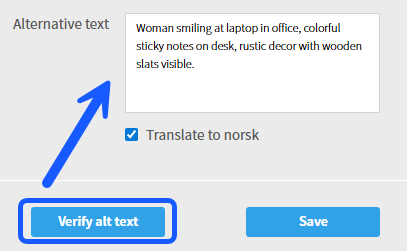
- In the editing panel to the left of the image, you will find a text box containing the AI-generated alt text, with a button labeled «Verify alt text» directly underneath it.

- If you are happy with the alt text, click the button labeled «Verify alt text». Once clicked, the button will be replaced by a confirmation line showing who verified the text and when.
- If you wish to make changes to the text, simply type your new alt text directly into the text box. Then, scroll down and click «Save». You can do this either before or after clicking the verification button.
Method 2: Verify alt text from the admin front page (Quick Mode)
This is the most efficient method if you want to quickly go through and approve alternative texts across multiple images.
- Click on the «Display options» drop-down menu in the top right corner of the front page.
- Change the display option from «Normal» to «Edit».
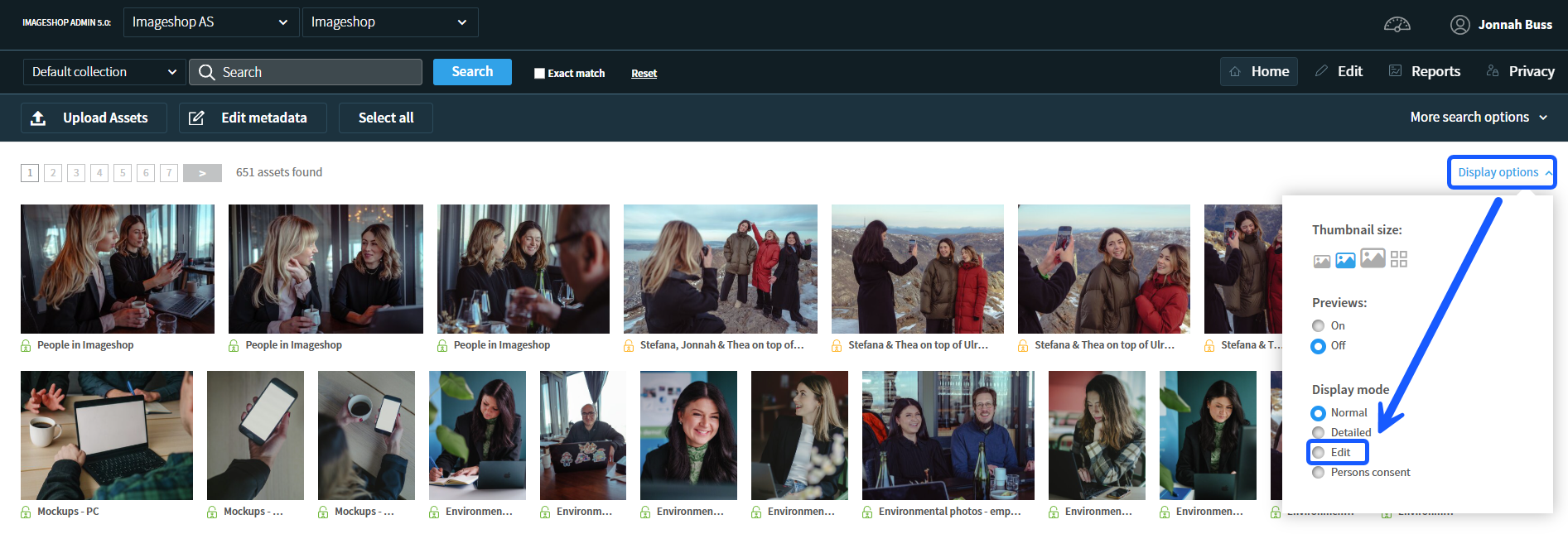
- Under each image card in the overview, open editable fields will now be shown. Click the button labeled «Verify alt text» under the images to approve them consecutively.
- After verifying the alt text of an image, the status field will update to display who verified it and the exact date.
- If you want to adjust the text after it has been verified, you can still modify it by typing your edits into the text box and clicking «Save».