When viewing image files in Admin, you can choose between different display options by clicking “Display options” above the images on the right-hand side.
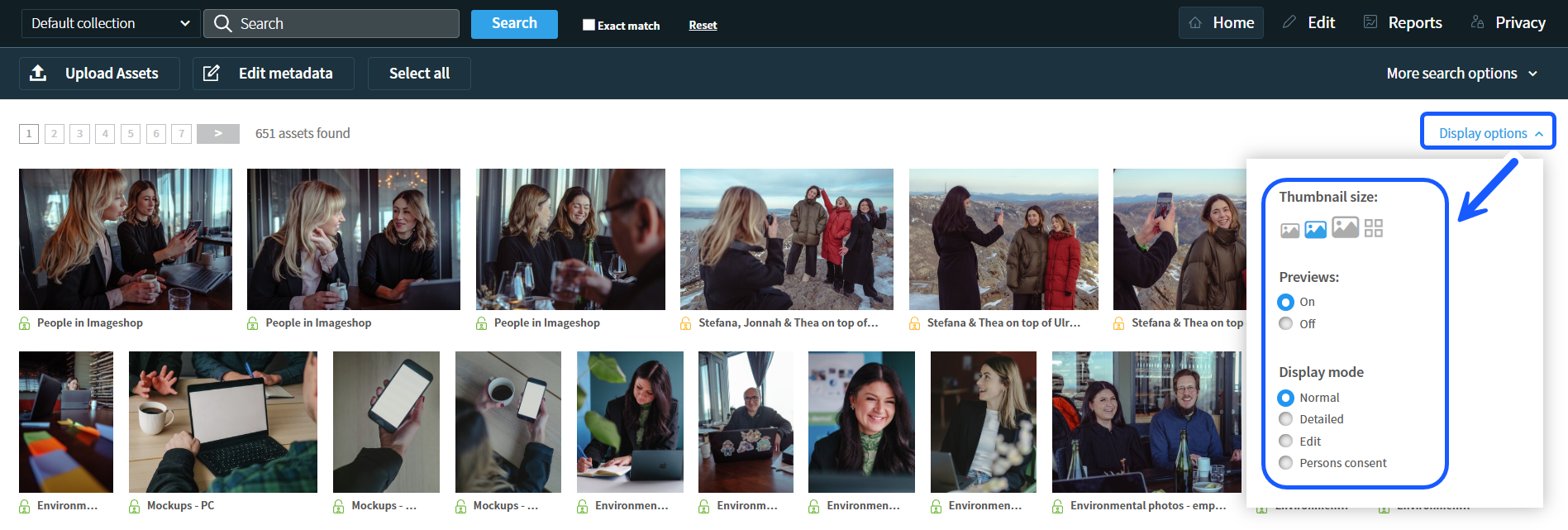
Image size
Here you can choose the size of the images displayed in the overview.
Previews
By enabling previews, you will see a larger preview of an image when hovering your mouse pointer over it. This can be especially useful if you are using one of the smaller image size options.
Display mode
Under display mode, you can choose between different ways of displaying images.
Normal
In normal view, images are displayed with only the file name shown below the image. This is the best option if you want to see as many images as possible at the same time and do not need detailed information about each image.
Detailed
In detailed view, the images are displayed together with additional information, such as:
- Description
- Credits
- Copyright information
- Alternative text
- Categories
In this view, image size cannot be adjusted, as the layout uses a fixed image size. You will see fewer images at a time before needing to scroll, but this mode is useful when you need more detailed information about the images.
Edit
In this display mode, you can edit image information directly from the overview without opening each individual image.
If you have the AI module enabled, you can also verify alternative text here. Read more here!
Persons consent
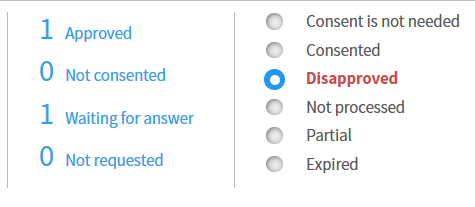
This display mode allows you to view the consent status of the images. In the columns next to the images, you can easily see whether an image has valid consent or is missing consent.
Image with valid consent:
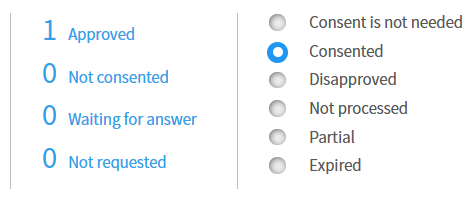
Image missing consent: