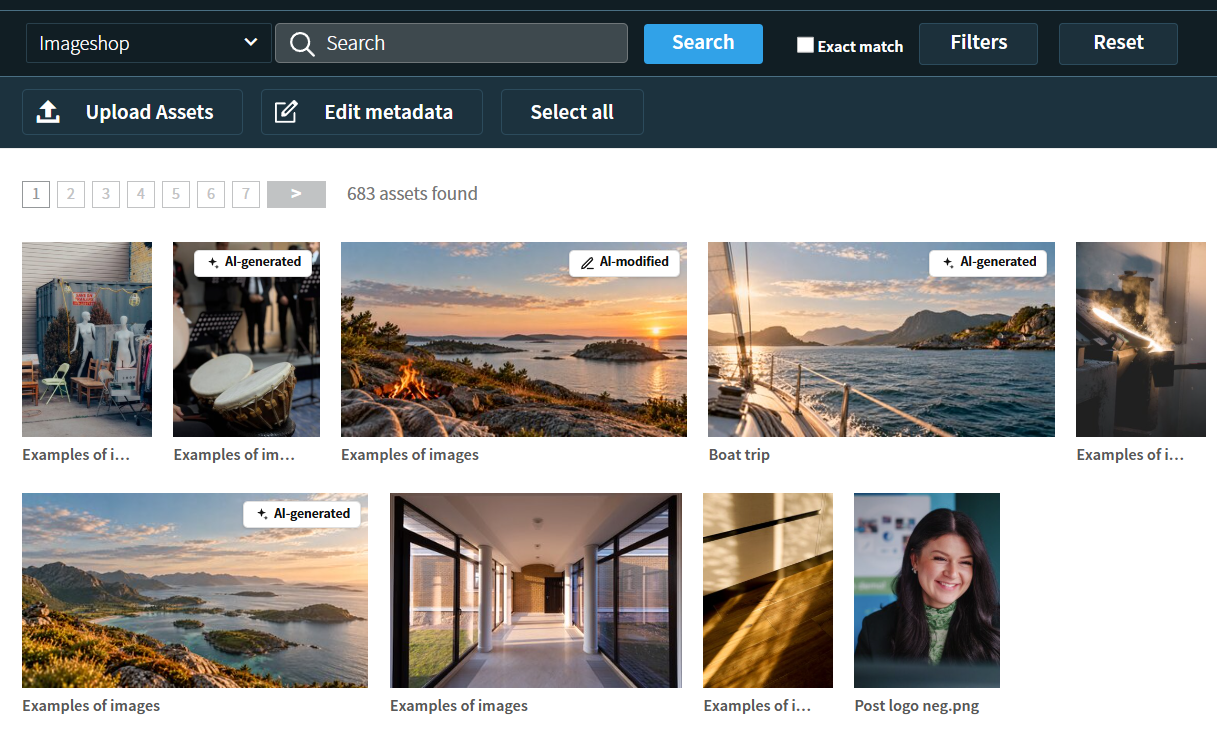
If you are uploading AI-generated or AI-modified images, you can label them clearly in Imageshop. If the images contain C2PA data, Imageshop automatically detects this during upload and adds a label. You can also set the AI status manually if the files do not contain C2PA data. This makes it clear to end users whether an image is AI-generated or AI-modified.
What is C2PA?
C2PA stands for Coalition for Content Provenance and Authenticity and is an open, international technical standard that makes it possible to verify the origin of digital content and see how it has been edited over time. The standard is developed and supported by a number of leading organizations in the technology and media industries, including Adobe, Google, Microsoft, OpenAI and the BBC.
How to enable the feature
- Log in to admin at admin5.imageshop.no.
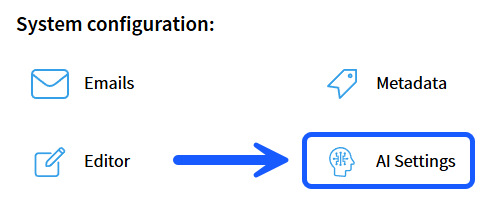
- Click your name in the top-right corner and select «Configuration».
- Click «AI settings».
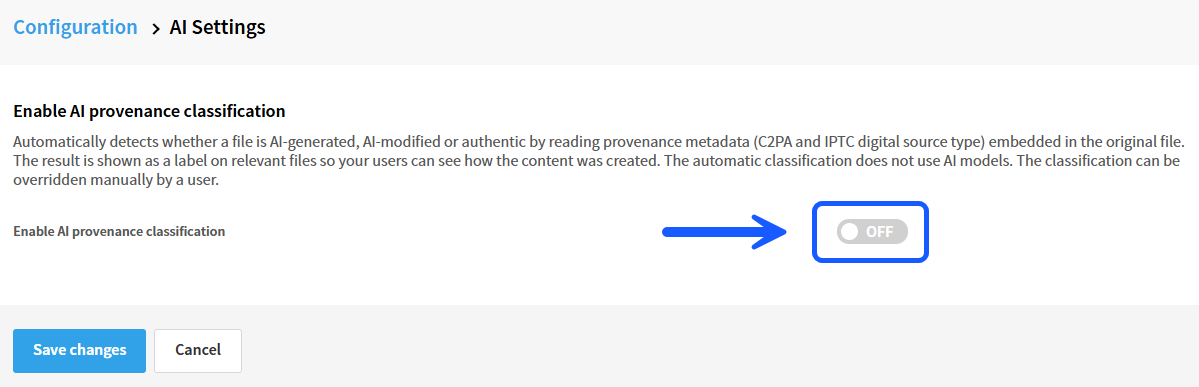
- Enable «AI provenance classification».
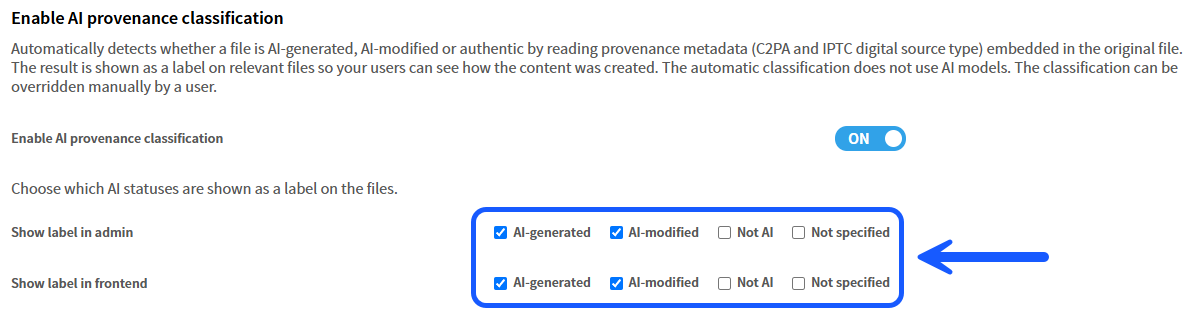
- Choose which labels you want to display and where they should be visible. You can display them in both admin and the image library for end users, or in just one of these locations. Save changes.
- If you have already uploaded AI-generated or AI-modified images, you can have Imageshop scan these files for C2PA data and label them as well. Important: This scan can only be run once. The button will disappear after it has been used.

How to set AI status when uploading
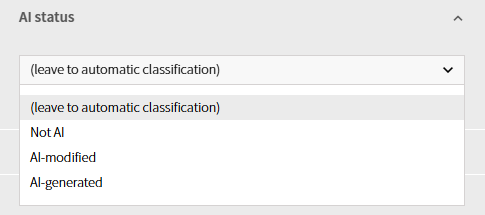
- In the upload section, you will now find the «AI status» tab on the left. By default, «Leave to automatic classification» is selected. The image will then receive a label after upload if Imageshop detects C2PA data.
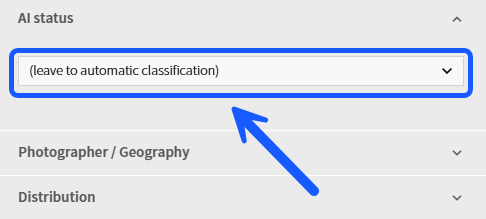
- If you prefer, you can set the AI status manually instead of using automatic classification.
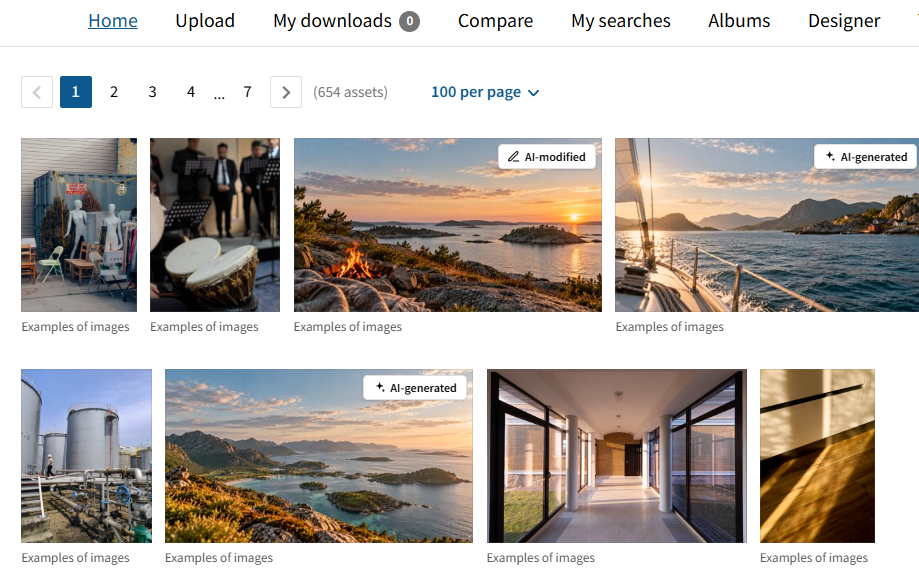
How the labels are displayed
In the image library for end users, the labels are displayed in the image overview. They make it clear which images are AI-generated or AI-modified.
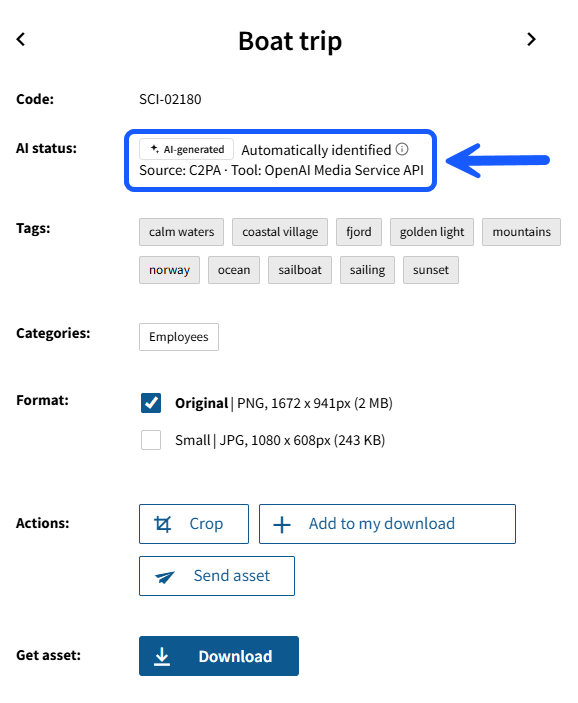
In the detail view, you can see more information. If Imageshop has identified the AI status automatically, this is shown along with information about the data the classification is based on and which tool was used to process the image.
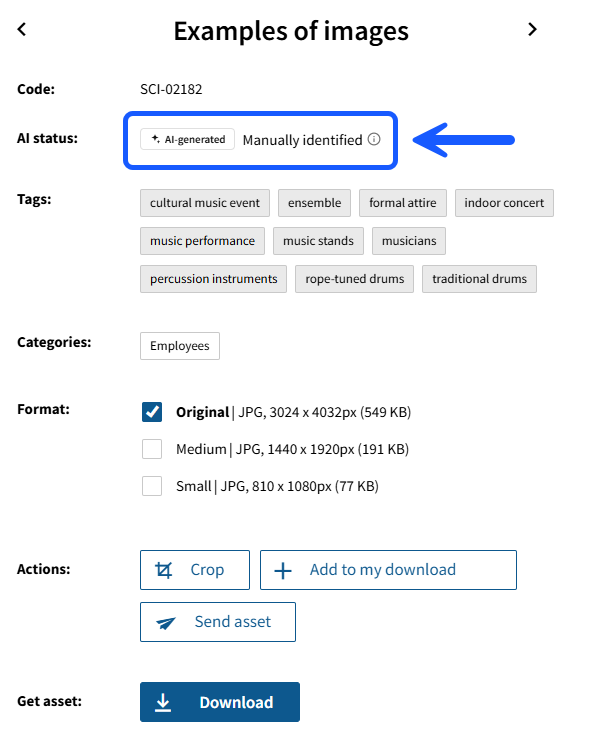
If the AI status has been set manually, this is also clearly indicated in the detail view.
In admin, the AI status is displayed in a similar way, with a clear label.
Useful to know
- You can filter images by AI status in both admin and the image library for end users.
- When this feature is enabled, the label is also displayed in integrations that use our image picker, such as the Office plugin, Optimizely, Sanity and Google.