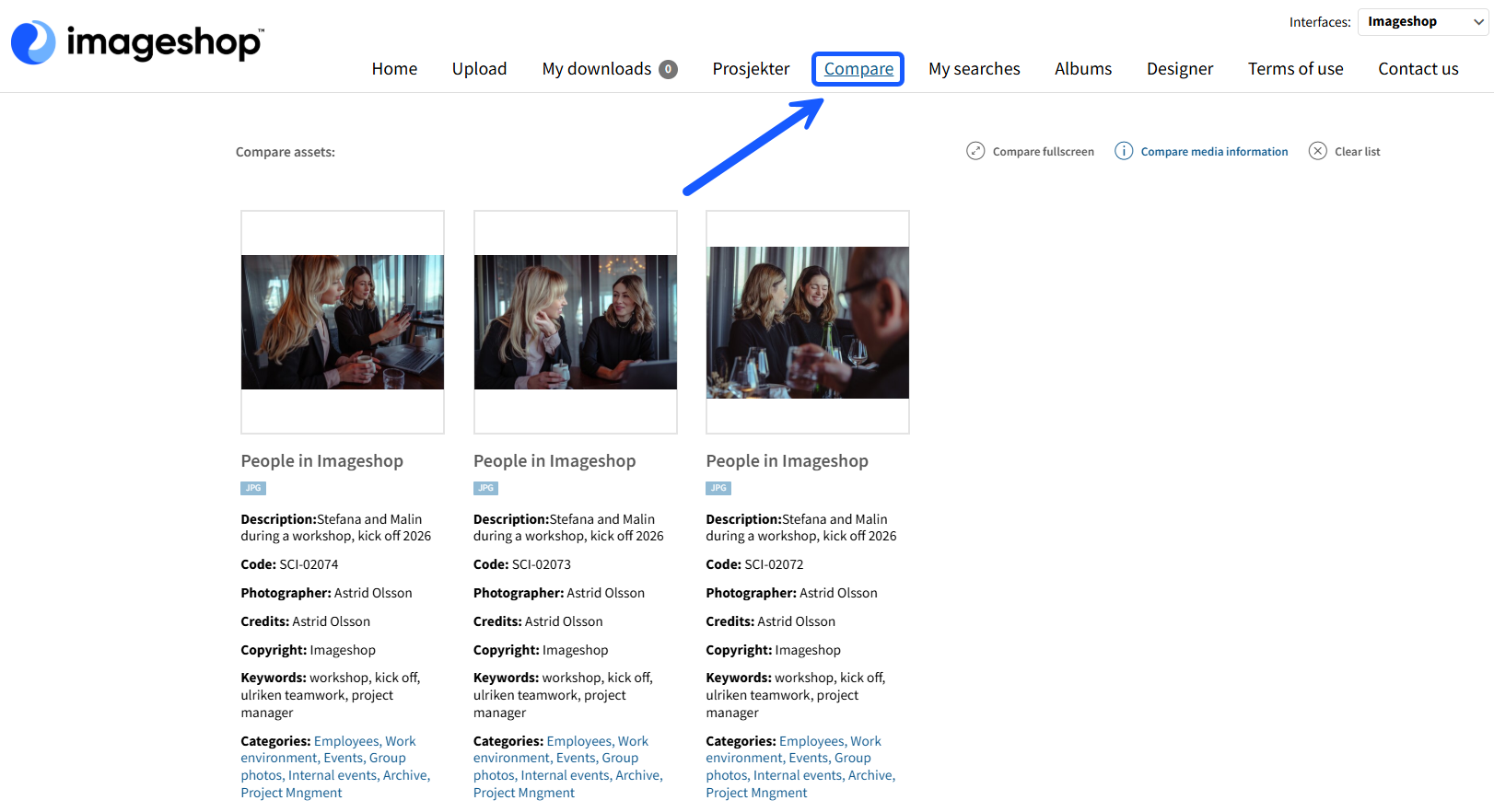
In Imageshop, you can use the "Compare" feature to easily compare multiple images and files side by side. This allows you to view differences in both appearance and metadata, helping you choose the right file to download without having to open each image individually.
This feature is particularly useful when you have several images with similar content and want to compare details such as image size, format, resolution, or photo credits.
How to Compare Images and Files
Hover over an image and click "Compare assets".
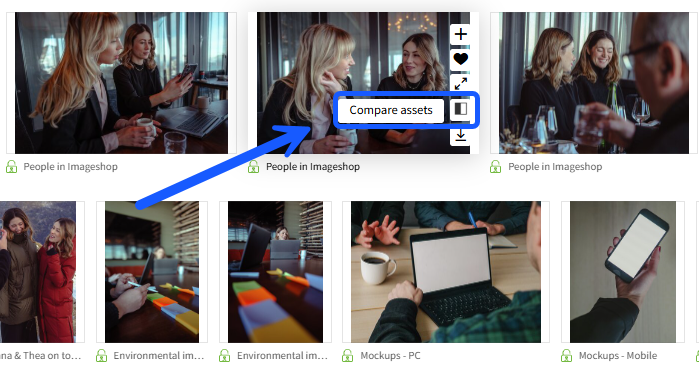
The selected image will appear in a comparison bar at the bottom of the screen. Continue adding images by clicking "Compare assets" on the other files you want to compare.
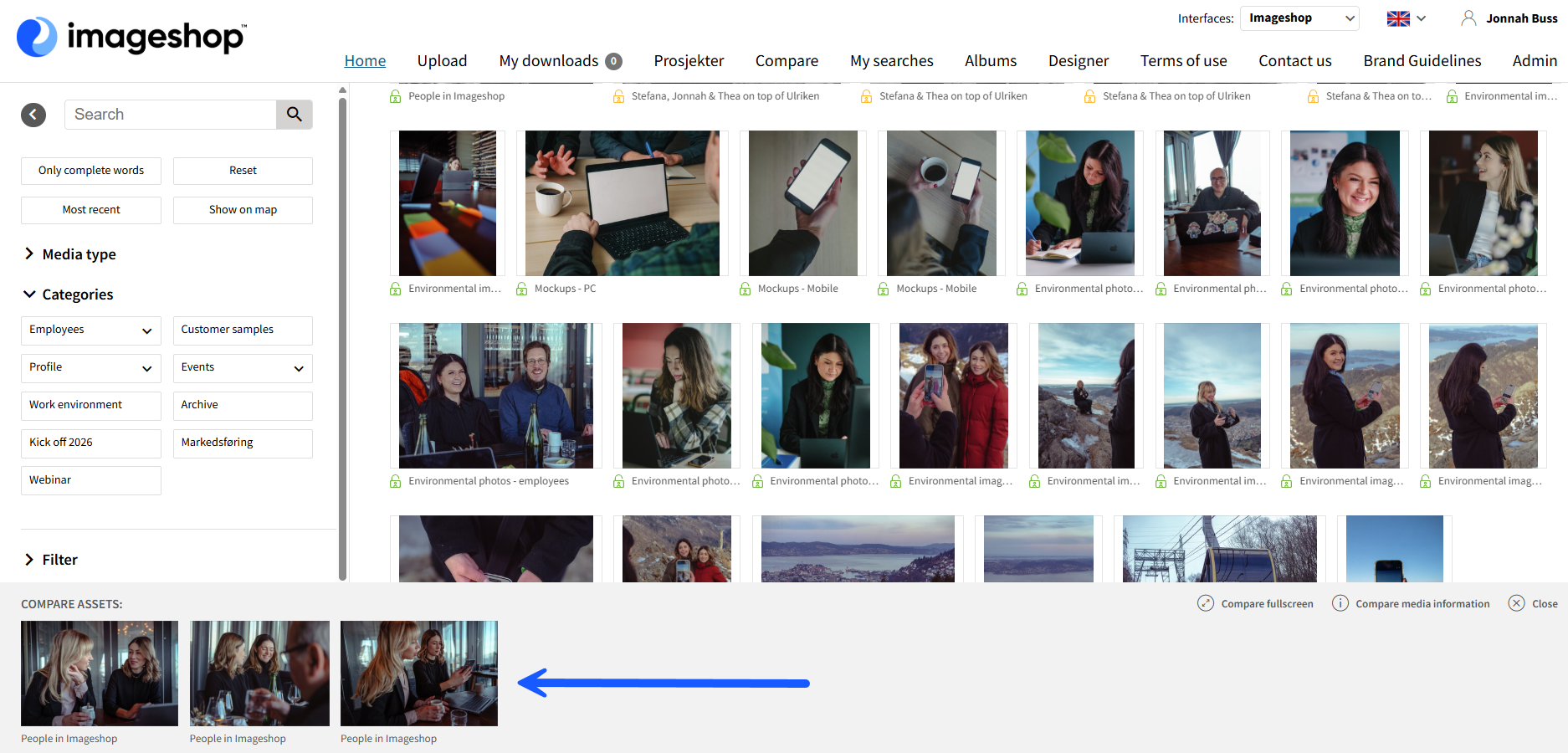
Once you have selected your files, you can choose between two viewing options:
"Fullscreen" – View the selected images in a larger format to compare visual details.
"Media information" – View the images alongside their metadata to compare file information.

Both options will take you to the "Compare" section in the main menu, where you can review your selected files and choose the image you wish to download.