This guide explains how to install and use the Imageshop add-on for Google Docs and Google Slides. The add-on allows you to search for and insert images directly from your organization's image bank without ever leaving the document or presentation you are working on.
Note: The Google Workspace integration is an additional module and carries an extra cost. If you have any questions or wish to activate this functionality for your company, please contact us at support@imageshop.no.
During installation, it is critical that all system permissions are approved (see Step 2).
Step 1: Locate and install the add-on in Google Workspace
Google Docs and Google Slides use separate add-ons. If you use both applications, you must complete the installation process below for both documents and presentations.
- Open an existing document in Google Docs or a presentation in Google Slides (you can also create a completely new, blank document).
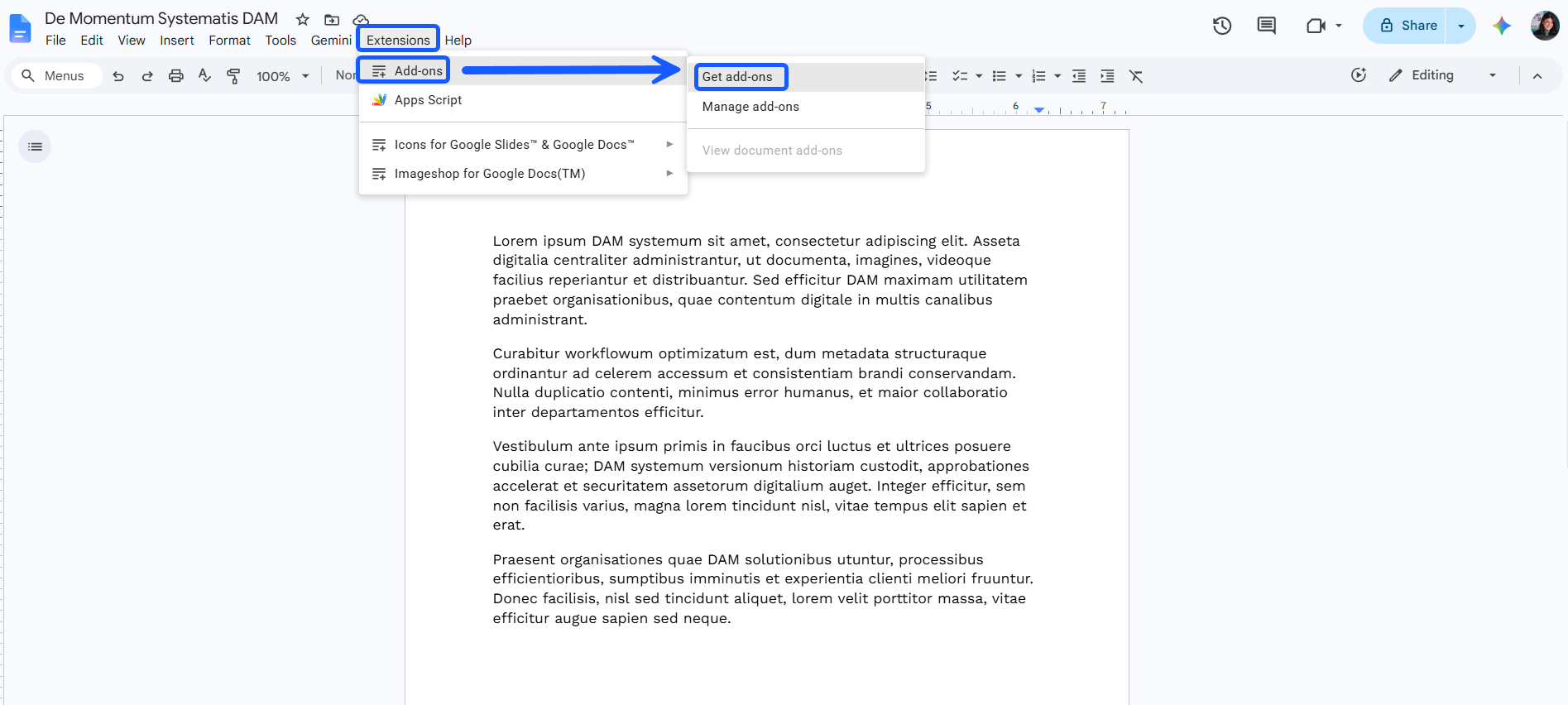
- Click on «Extensions» in the top menu, select «Add-ons», and then click on «Get add-ons».
- The Google Workspace Marketplace will now open in a separate window over your document. Use the search bar at the top to search for either:
- «Imageshop for Google Docs» (if you are working within a document)
- «Imageshop for Google Slides» (if you are working within a presentation)
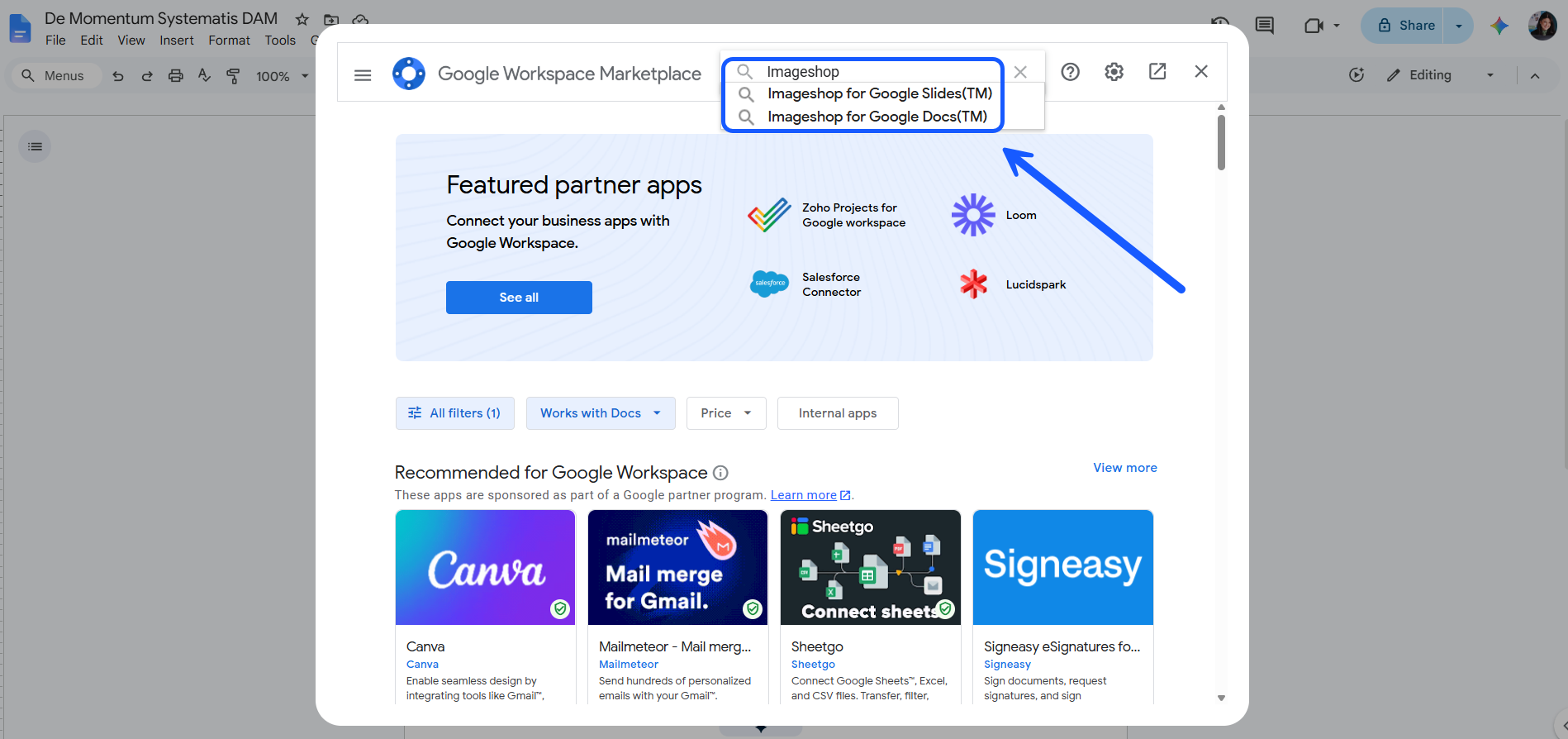
- Click on the Imageshop add-on in the search results and press the «Install» button.
- Log in with your associated Google account if the system prompts you for additional verification.
Step 2: Important information regarding permissions and consent
Google utilizes a security system known as granular access. This means that during installation, you can choose to turn individual permissions on or off rather than approving them all as a single package.
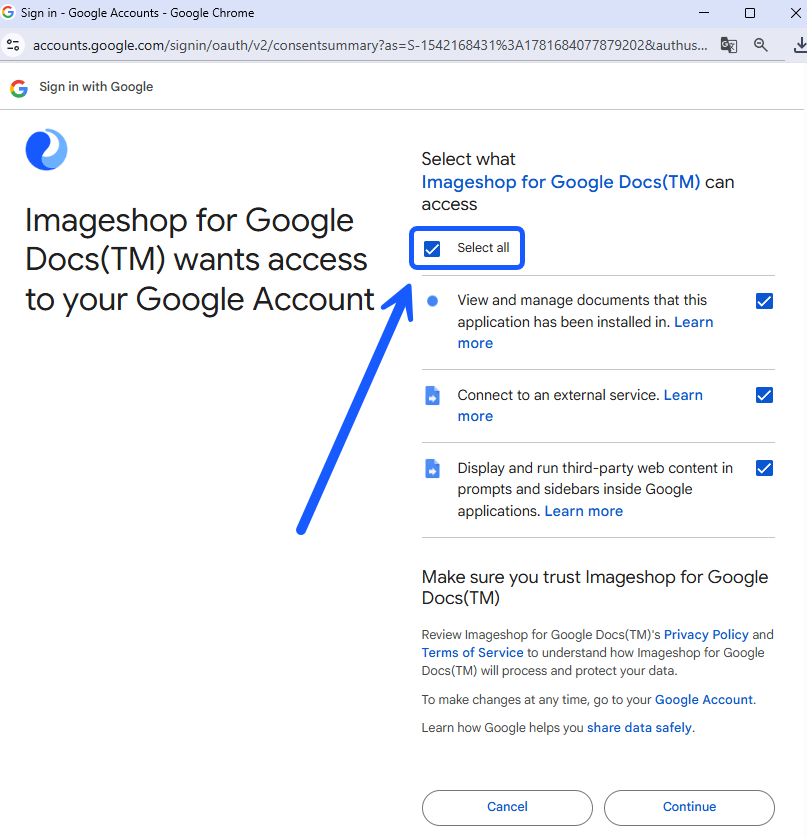
Important notice: The Imageshop add-on is entirely dependent on ALL listed permissions in order to run and communicate with your image bank.
If you choose to uncheck one or more permissions on the consent screen, the following will occur:
- The add-on application will fail to launch.
- Critical core functionalities will be missing or fail entirely.
- The add-on may appear to be correctly installed in your extensions menu, but the side panel will remain blank or locked.
How to ensure a correct installation: When Google displays the consent and app permissions window during the installation process, you must click the «Select all» option. Visually check to ensure that an active checkmark is placed next to absolutely every item before clicking through to complete the process.
Step 3: Start using Imageshop in Docs and Slides
Once the add-on is fully installed and all permissions are granted, you are ready to bring media assets directly into your projects.
- Open a document in Google Docs or a presentation in Google Slides.
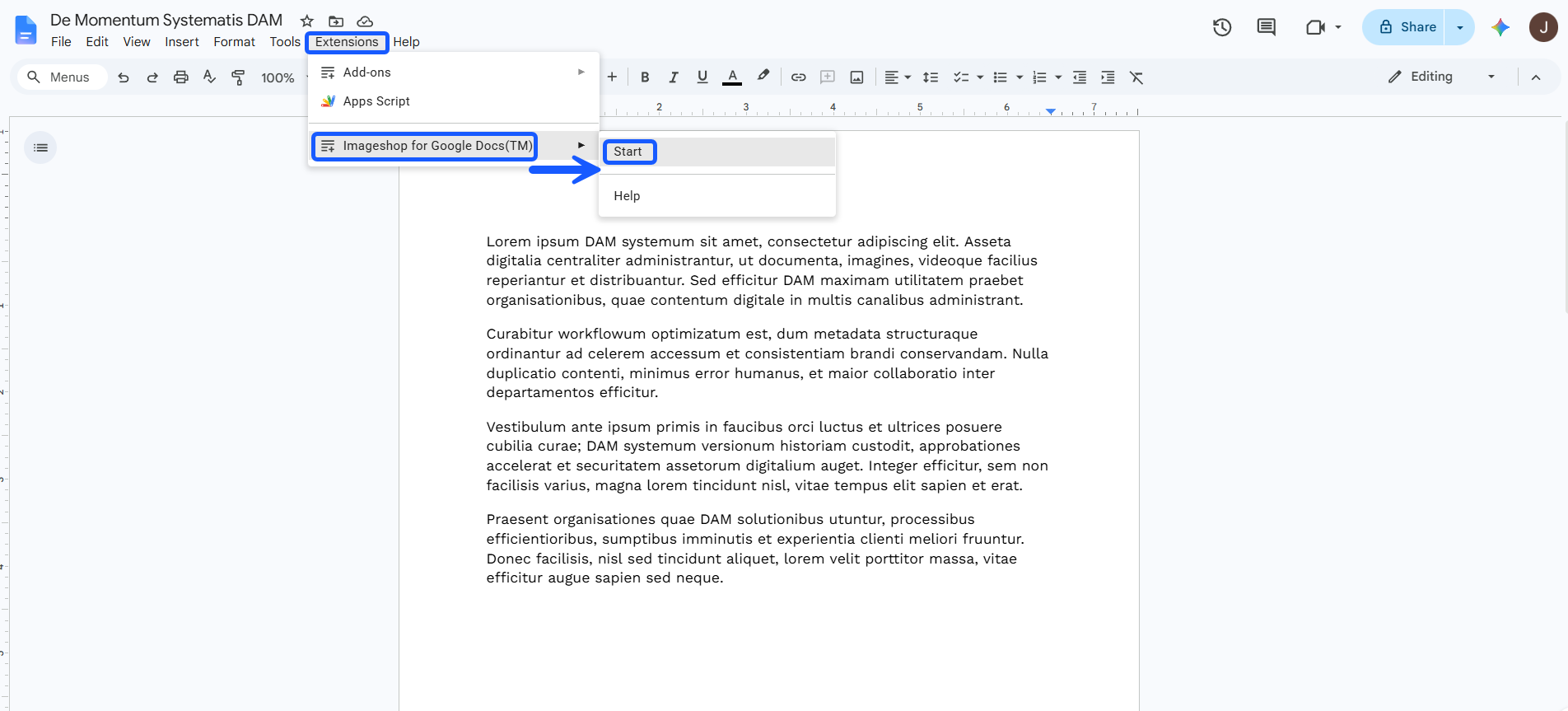
- Click on «Extensions» in the top menu.
- Hover your mouse pointer over «Imageshop for Google Docs» (or Google Slides) and click on «Open / Start».
- A dedicated side panel will open on the right side of your screen.
- The first time you open this panel, you will be prompted to log in. Enter your personal Imageshop username and password.
The side panel will now automatically connect to your organization's image bank. From here, you can search, filter, and navigate your media archive, and insert selected images directly onto your page with a single click.
If the add-on does not behave as expected, or if the side panel fails to load, we recommend uninstalling the add-on from the Google Workspace Marketplace and performing Step 1 and Step 2 again – paying extra attention to ensure that all permissions are checked.
Are you still experiencing issues? Please feel free to contact us at Imageshop support directly at support@imageshop.org, and we will help you resolve the problem.