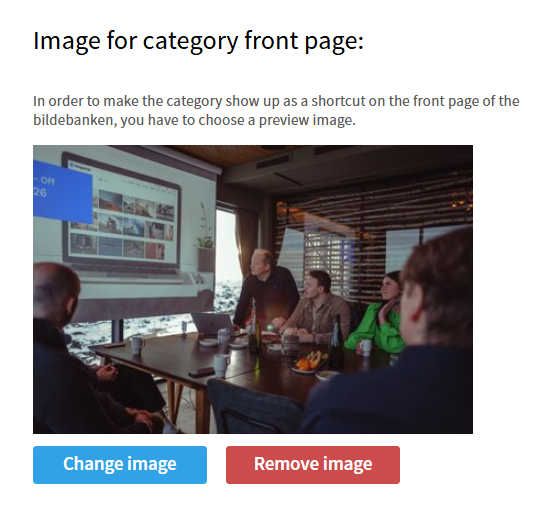
If you are using a front page template that displays categories, you can choose which categories should be visible, as well as add a unique image for each category.
How to find the category settings
- Log in to admin5.imageshop.no.
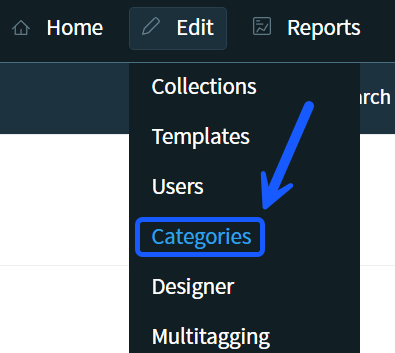
- Go to the menu and select Edit → Categories.
- Click on the category in the list that you want to add or change an image for.
Add an image to a category
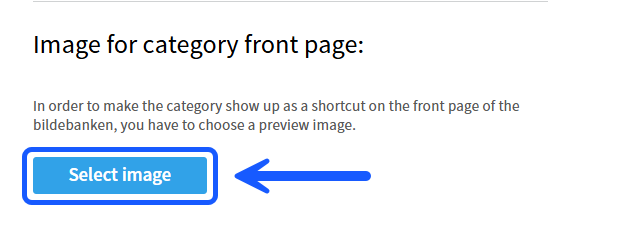
- In the panel on the right side, locate the field "Image for category front page". Click the "Select image" button.
- Use the image picker that appears to search for and select the image you want from the image bank.
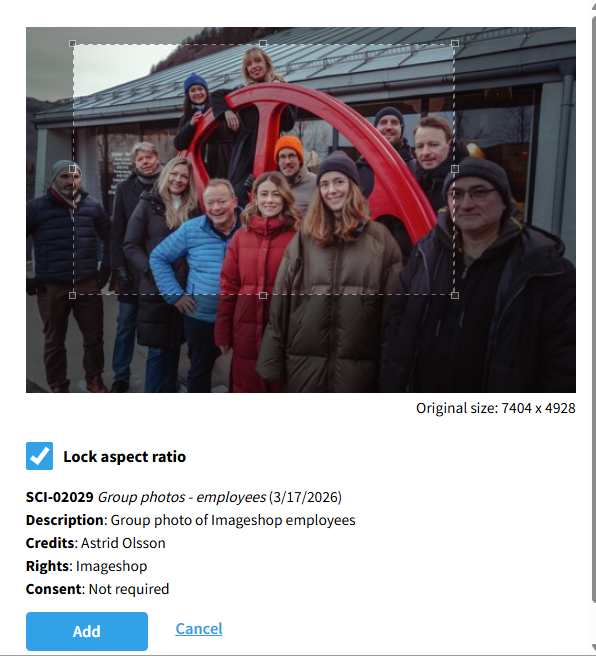
- Click on the image. A new window will open where you can crop the image to your liking.
- Tip: As long as the "Lock aspect ratio" option is enabled, the image will maintain its correct proportions (width-to-height ratio) while cropping.
- When you are satisfied with the selection, click "Add". The change is saved automatically.
Change or remove an existing image
- Navigate to the relevant category in the same way as explained above.
- In the "Image for category front page " field on the right side, you will see the image currently in use.
- To change the image: Click "Change image" to open the image picker and select a new motive.
- To remove the image completely: Click "Remove image". The category will then be displayed without an image.
- All changes are saved automatically right away.