In Imageshop, administrators can easily add, edit and delete categories. Categories are organized as category trees with main categories and subcategories. There is no limit to how many category trees, main or sub categories you can add.
Important to know:
Only categories containing files or images are visible in the user interface. To make a new category visible, at least one file must be tagged with the category.
It may take up to one hour before new categories appear the first time they are used. You can make the category visible immediately by publishing the interface.
How to find categories
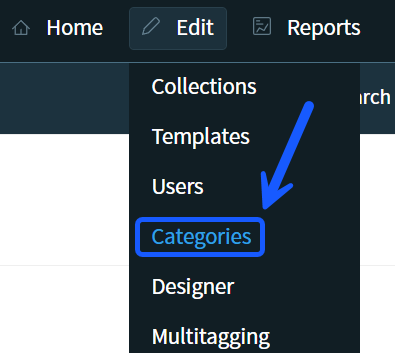
- Log in to admin5.imageshop.no.
- Click «edit» → «categories».
Add or delete a category tree
Add a new category tree
- Click «Add new category tree» at the bottom of the left menu.
- Enter a name for the category tree.
- If your solution has multiple languages, you must enter a name for each language.
- Click «Save».
Delete a category tree
To delete a category tree, all main categories and subcategories inside the tree must be deleted first. When the tree is empty, the «delete» button will become available next to the category tree.

Add or delete a main category
Add a main category
- Select the category tree where you want to add the category.
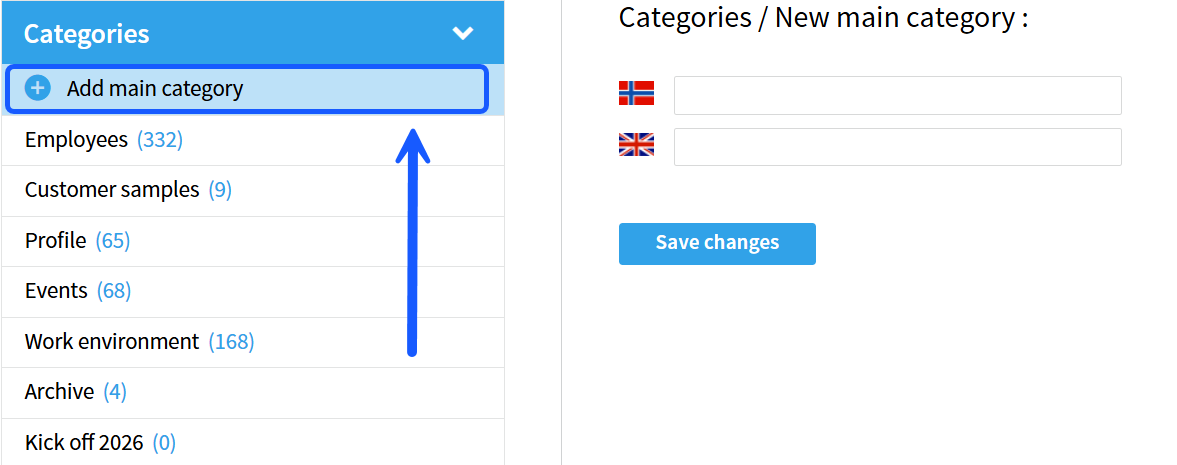
- Click «add main category».
- Enter the category name.
- If your solution has multiple languages, you must enter a name for each language.
- Save the changes.
Delete a main category
To delete a main category, all subcategories must be deleted first.
- Click the main category you want to delete.
- Click «delete» on the far right side of the page.
Add a subcategory
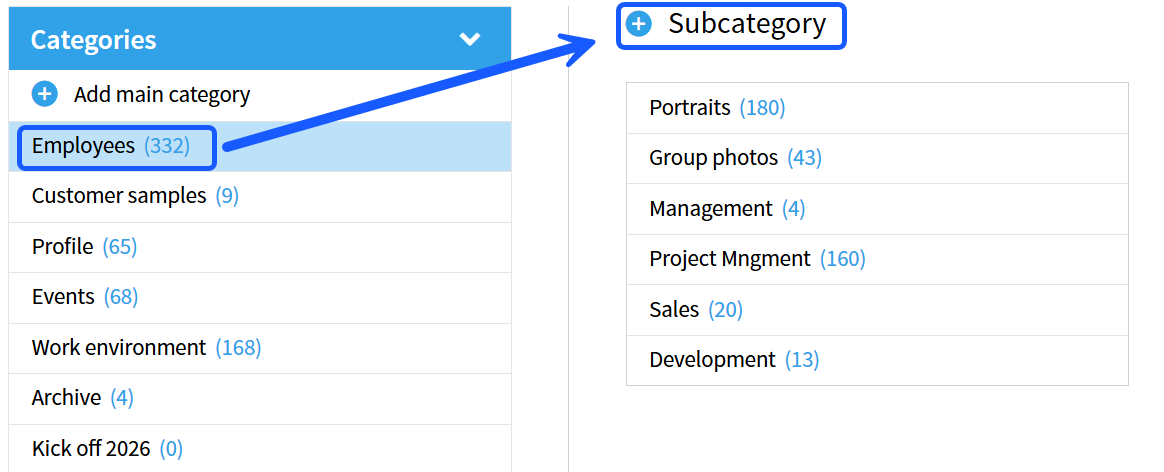
- Click the main category where you want to add a subcategory.
- Click «+ subcategory».
- Enter the name of the subcategory.
- Click «save changes».
Change the order of categories
You can easily change the order of both main categories and subcategories using drag and drop.