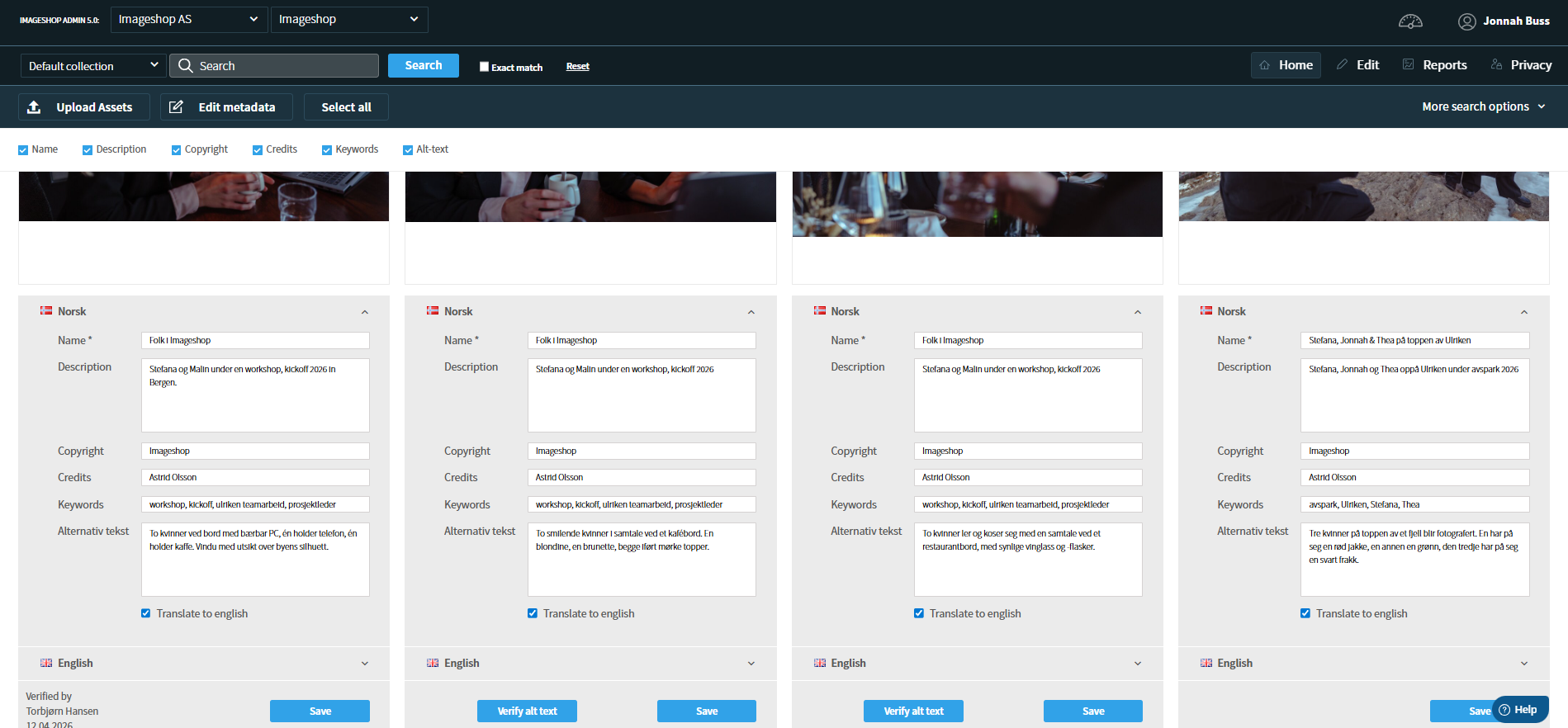
In the administration panel, you can change information on multiple images at the same time if needed. This is highly efficient whether you need to change categories, adjust distribution to interfaces, or update text fields across an entire series of images.
Method 1: Add or remove categories or distribution on multiple images
This procedure applies to all functions with checkboxes, such as category assignment, distribution to interfaces, and the setting for whether the image should be visible to administrators only.
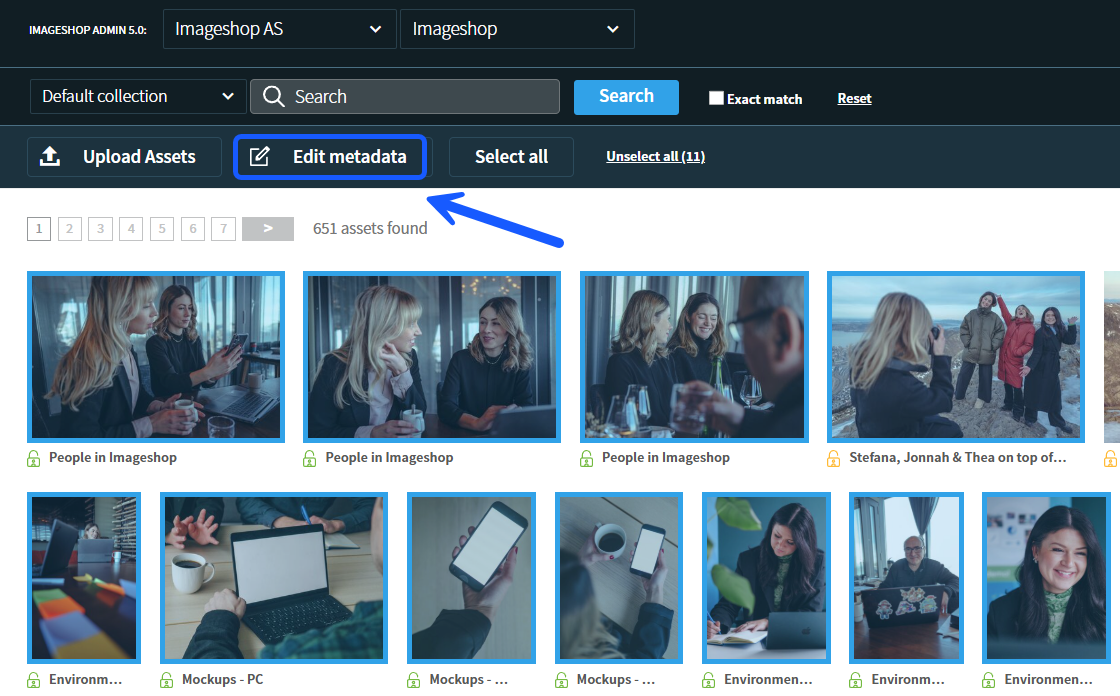
- Select the images you want to change.
- Click on the «Edit metadata» button.
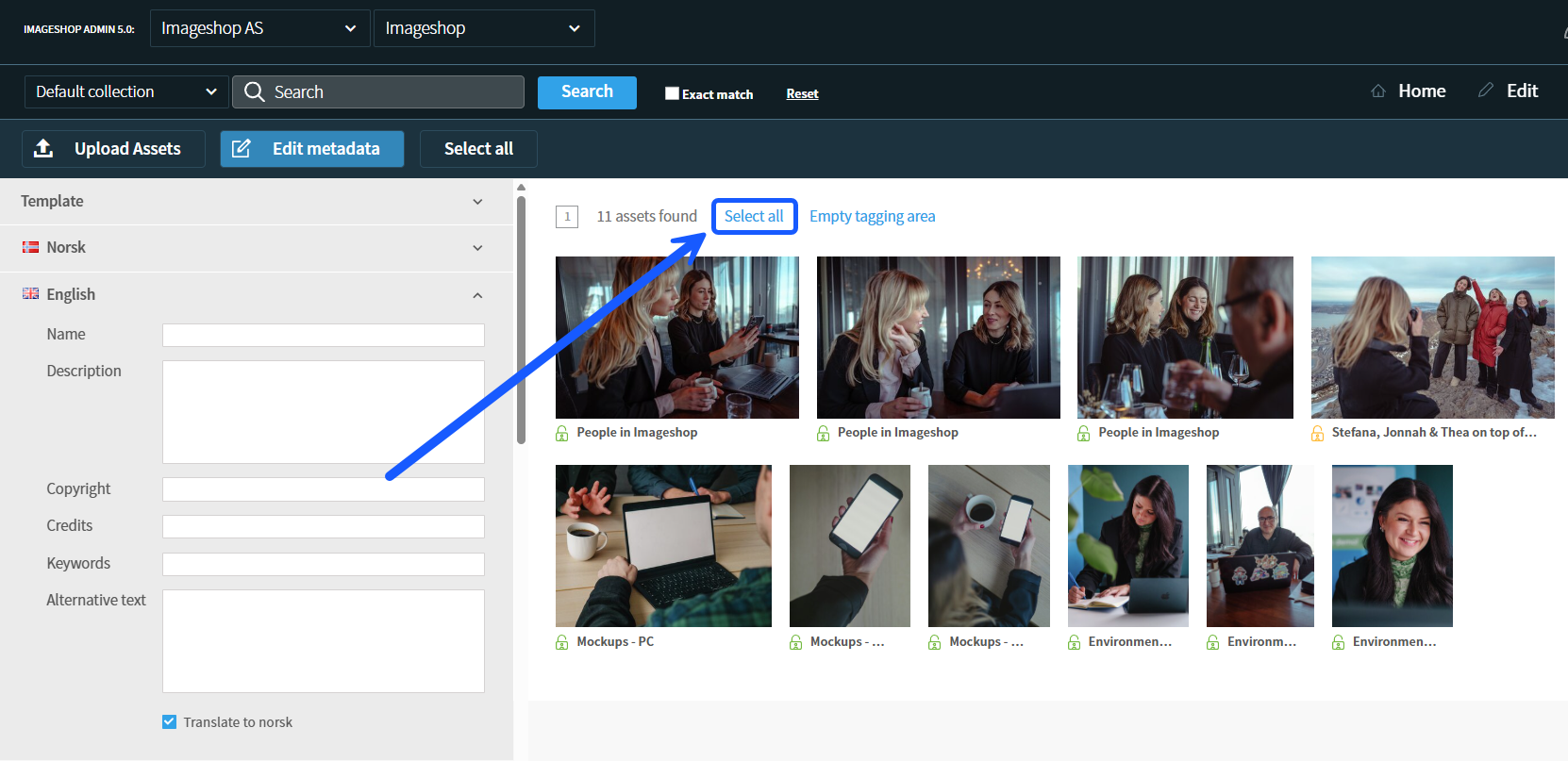
- Click on «Select all» in the metadata screen so that all the images are highlighted again.
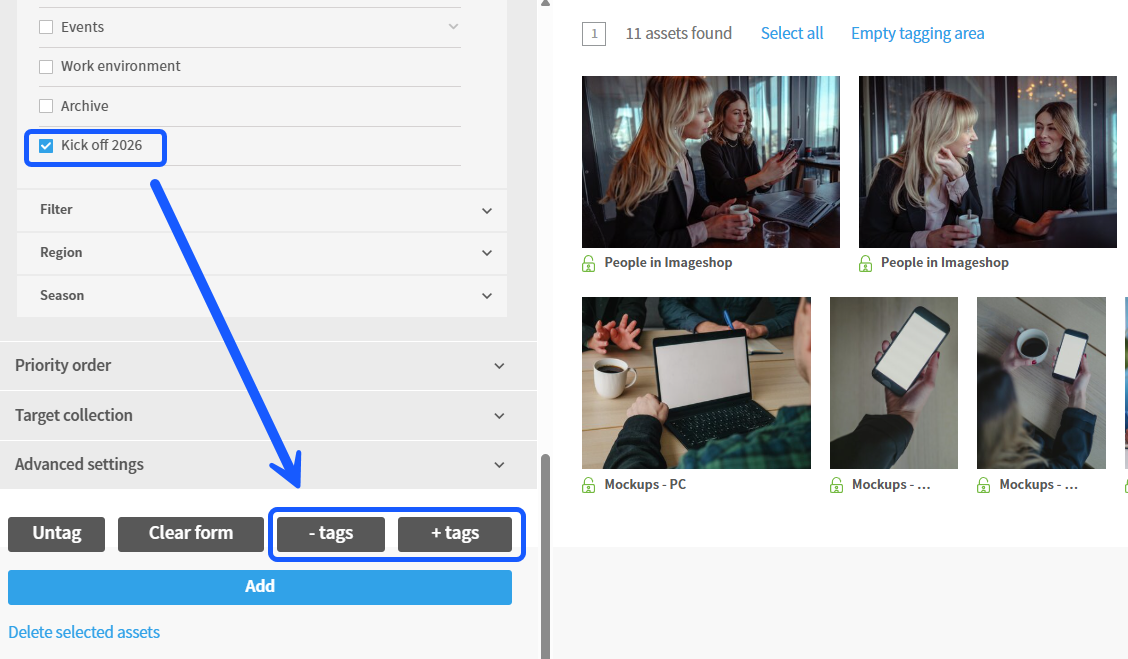
- Check the box for the category or option you want to remove or add to the images.
- Use the action buttons at the bottom:
- Click on «-tags» to remove the option from all selected images simultaneously.
- Click on «+tags» to add the option to all selected images simultaneously.
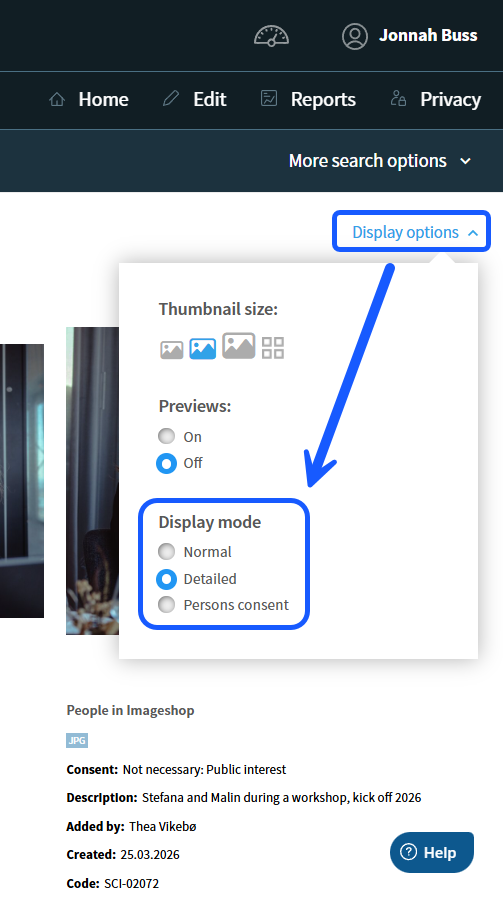
Tip: Under the «DIsplay options» and «Display mode» menus, you can keep track of what the images are actually tagged with while you work.
Method 2: Change name, description, and other text fields on multiple images
- Select the images you want to change text information for.
- Click on the «Edit metadata» button.
- Click on «Select all» so that all images are highlighted in the editing view.
- Enter the new name, description, or common text you want in the fields on the left side.
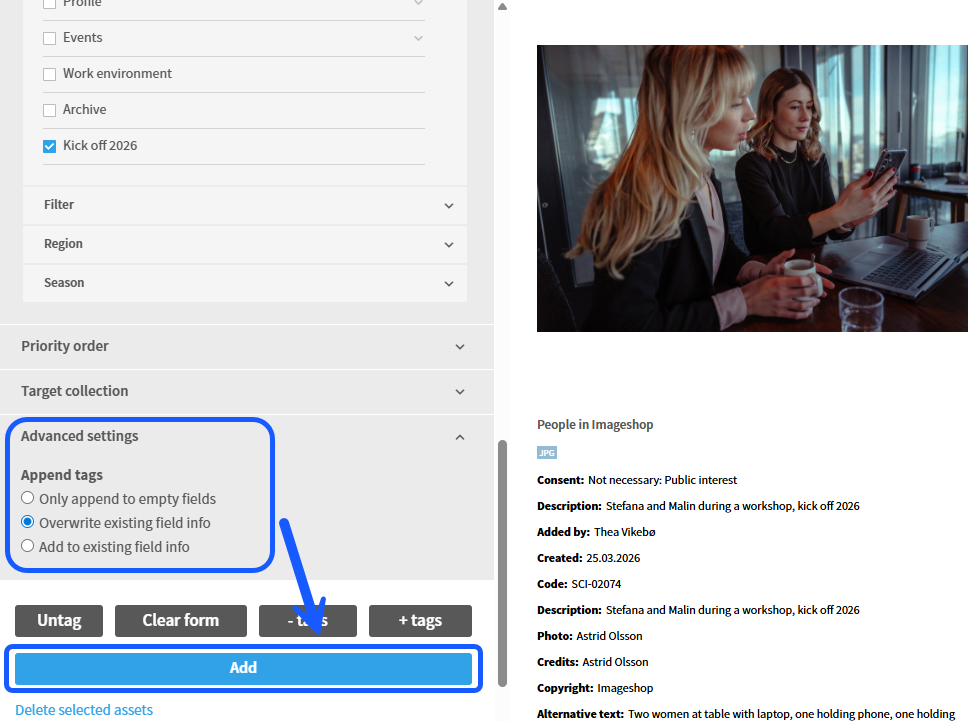
- Under the «Advanced settings» section, you must select the option «Overwrite existing field info».
- Click on the «Add» button to roll out the changes to all images.
Method 3: Quick editing via Edit Mode
If you need to go through a series of images and make quick, individual changes, you can alter the display mode directly in the administration panel.
- Search or filter to find the images you want to review.
- Change the selection in the «Display options» drop-down menu in the top right corner from «Normal» to «Edit».
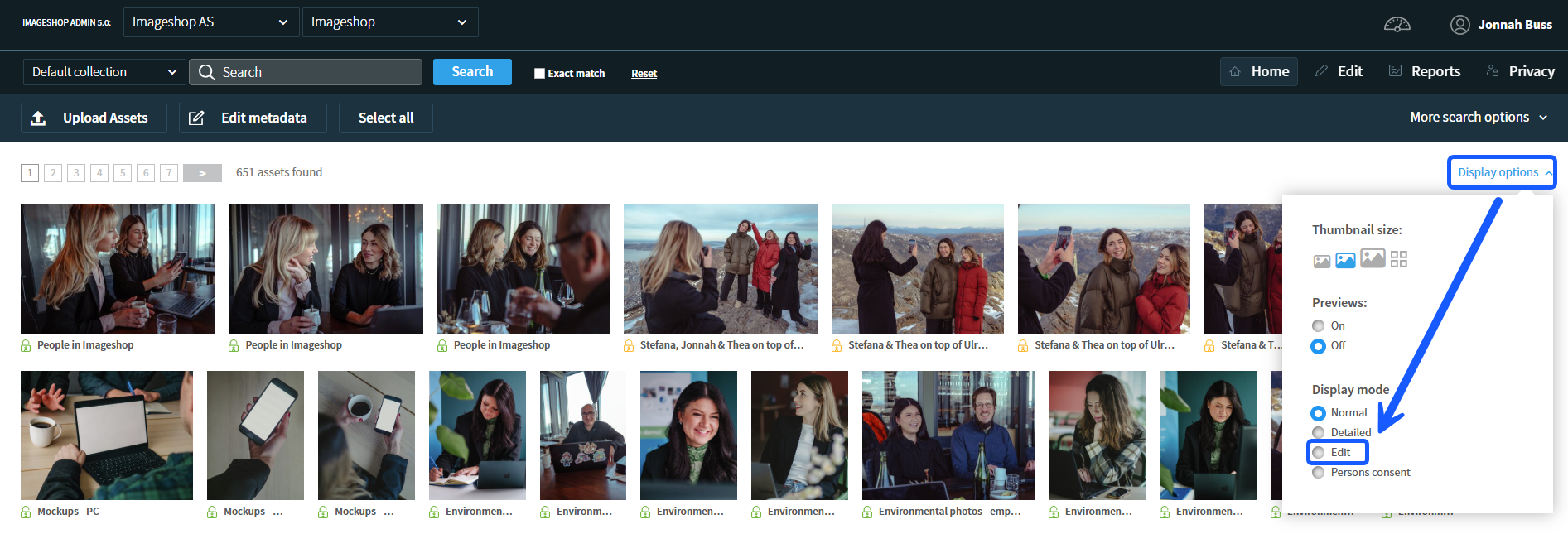
- The images will now be listed with open text and information fields directly in the grid. This allows you to edit metadata for image after image at a fast pace while maintaining a visual overview.