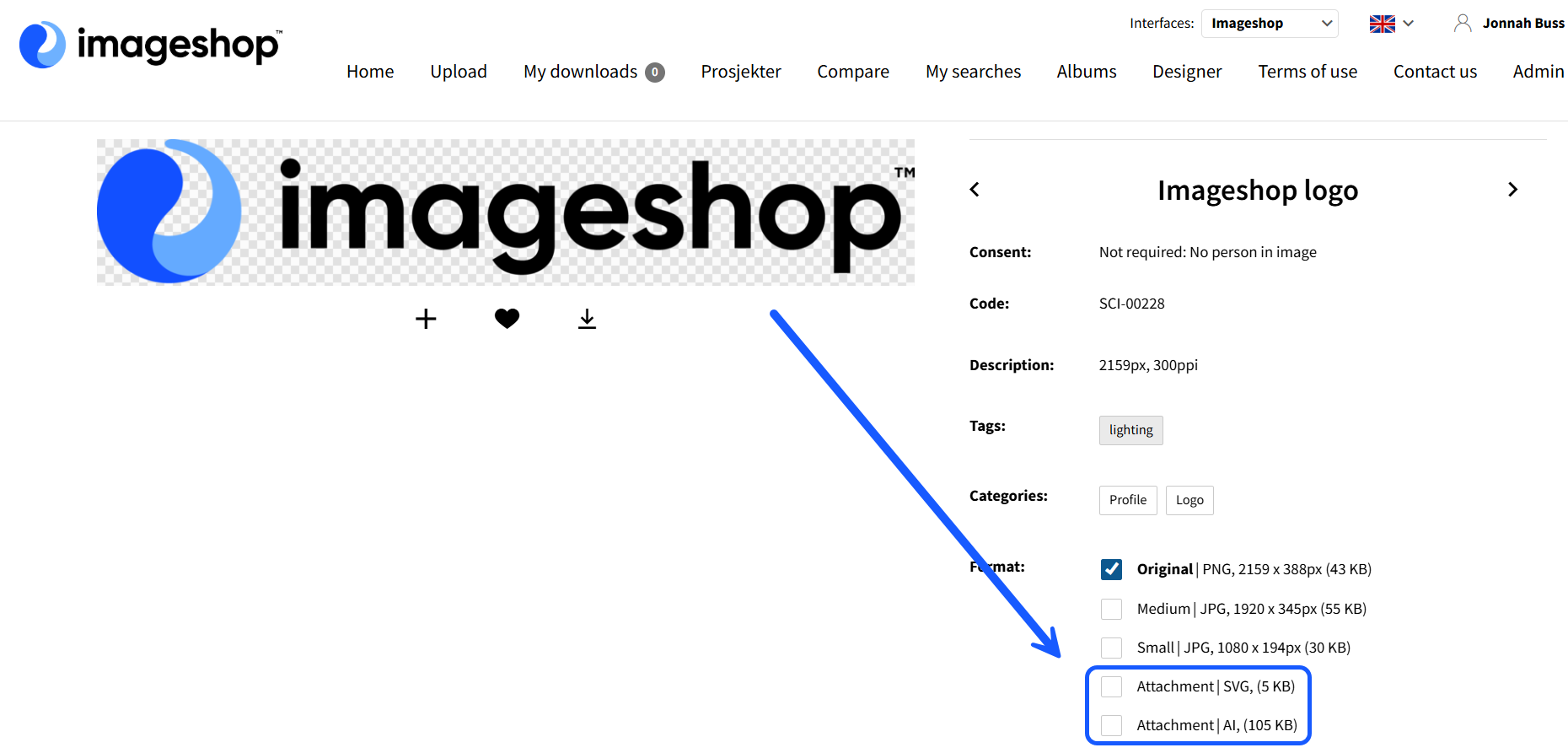
If you have multiple formats of an image (PNG, SVG, EPS, PDF), you can upload them together under the same file instead of uploading several separate images of the exact same motif. This is especially useful for logos, where you often have the same motif in different file formats or color variants.
How to add alternative formats
- Log in to the administration panel via admin5.imageshop.no.
- First, upload one of the versions of the image as usual. This image will act as the main file (the original) displayed in the image bank.
- Open the detail view of the image by clicking the info icon (i) in the bottom right corner. You can also click in the middle of the image itself, as long as you do not hit any of the other icons.

- Scroll down below the image, click on the button «Add new format», and then choose «Select files» to locate the alternative version on your computer.
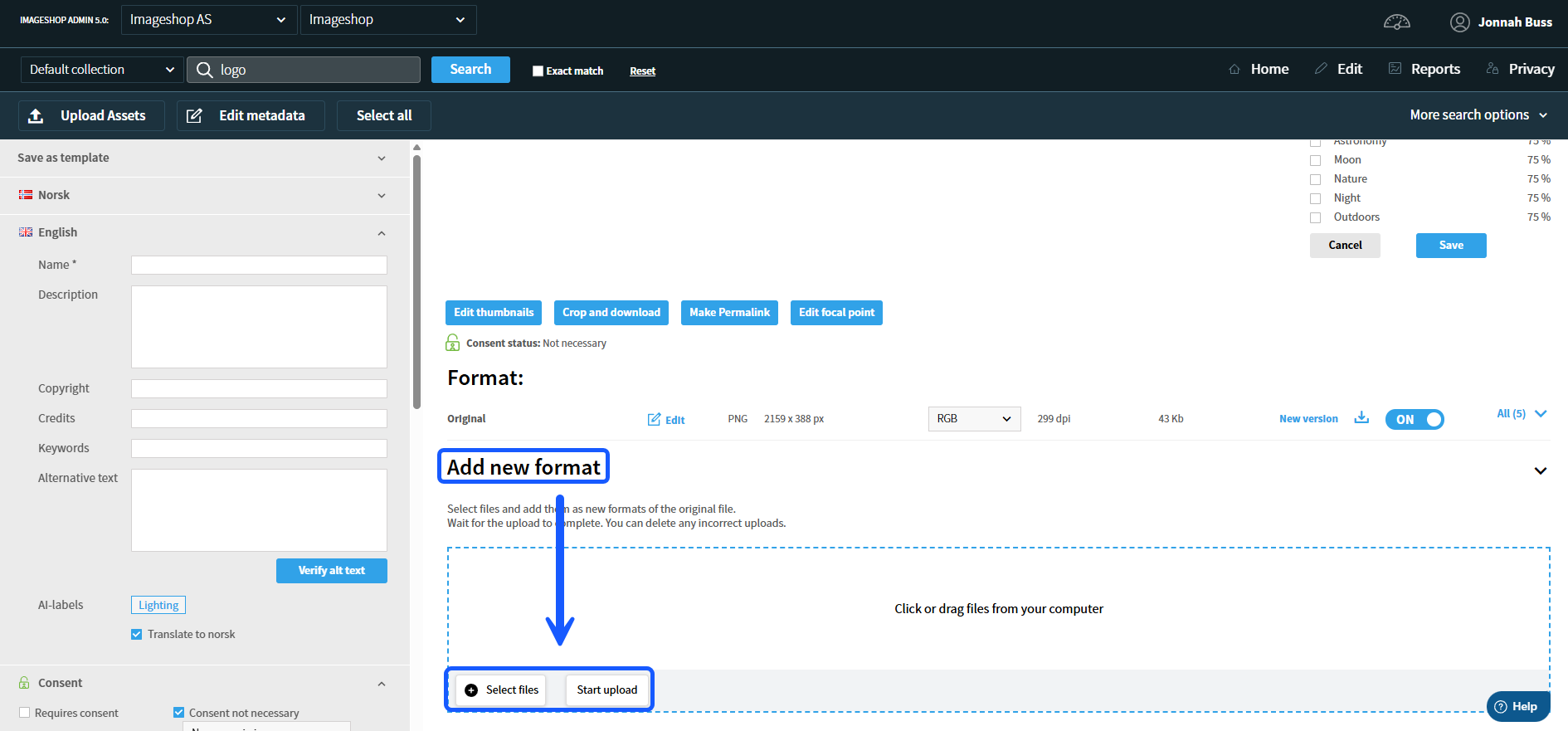
- Click on the blue button marked «Start upload» to upload the file.
- You can rename the uploaded version by clicking the pencil icon. If you are uploading a logo in various formats, it is a good idea to give them clear names like «PNG», «JPG», «EPS», or similar.
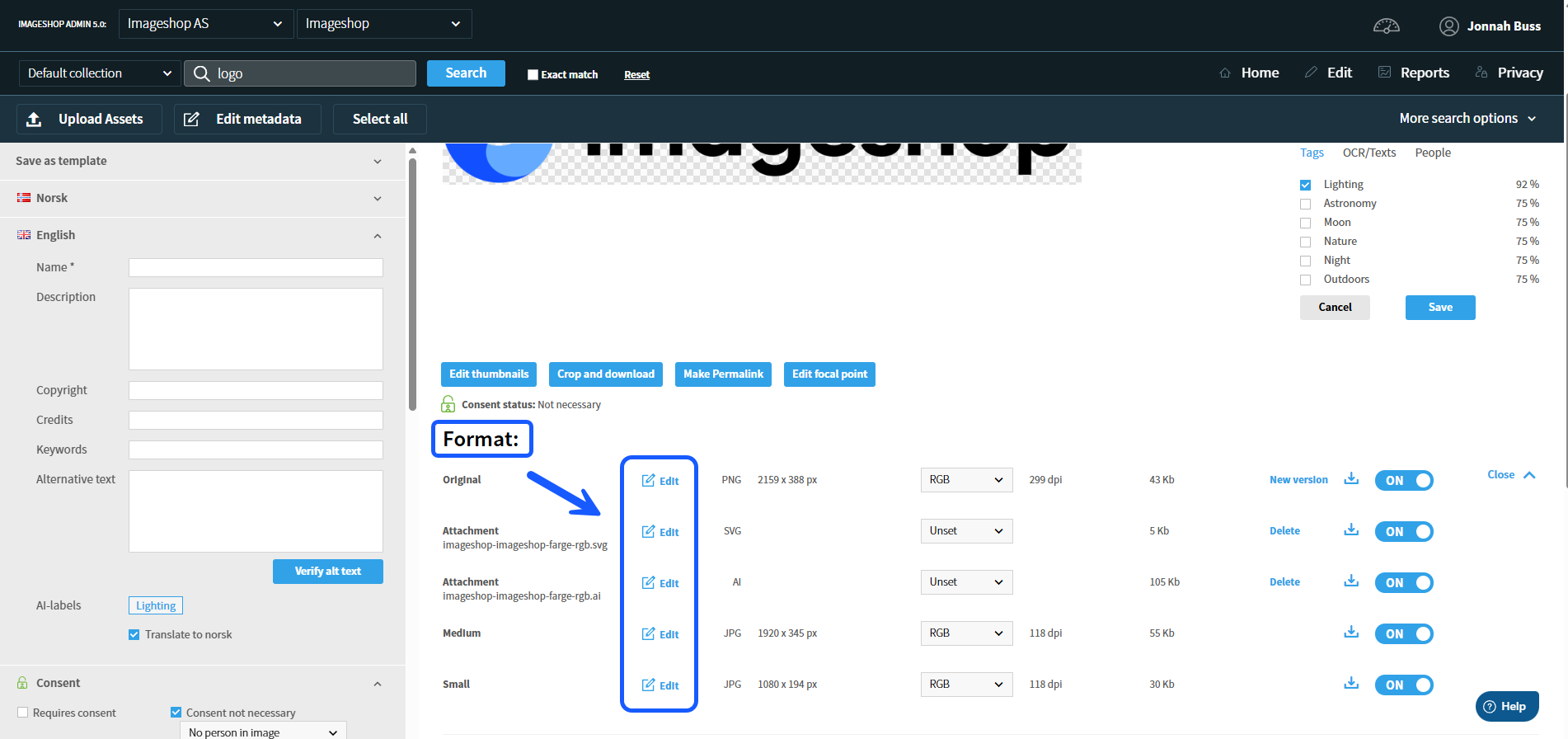
- The alternative version is now added as an attachment to the main image. When users find the image in the image bank (frontend), these versions will appear as options in a drop-down menu when they download the file.