As an administrator in Imageshop, you can easily update the colors used in your media bank. You can change:
- primary color
- secondary color
- project page color
You can use different colors for different interfaces, or update all interfaces at the same time.
How to find the color configurations
- Log in to admin5.imageshop.no.
- Click your name in the top right corner and select «configurations».
- Select «colors».
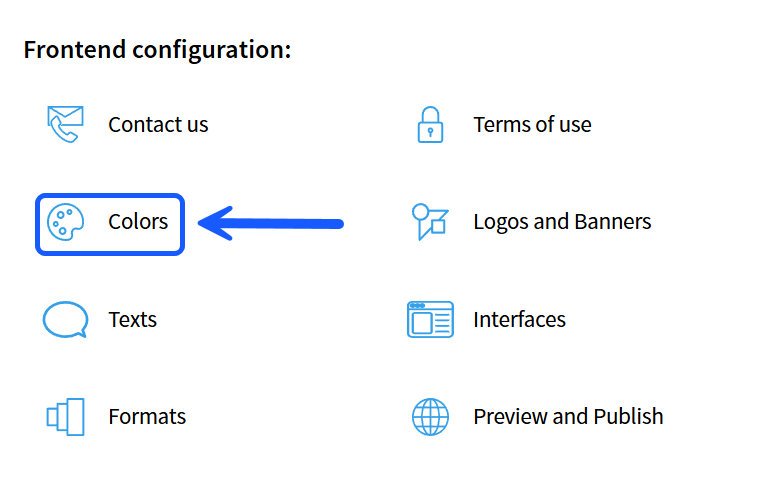
Change colors for one specific interface
- Click the interface you want to edit in the tabs at the top of the page.
- Update the desired color code.
- Click «save changes» at the bottom of the page.
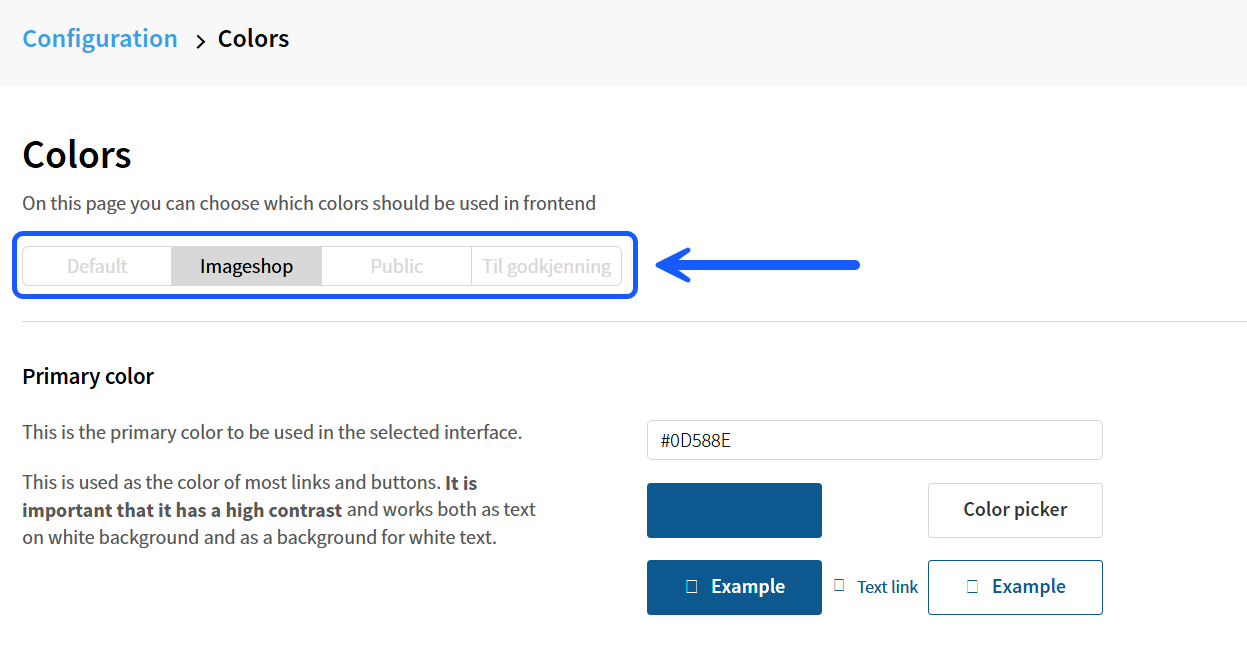
Change colors for all interfaces at the same time
- Click the «default» tab at the top of the page.
- Update the desired color codes.
- Select the interfaces at the bottom of the page and click «copy current interface to».

Publish the changes
The changes will not be visible to end users until the interface has been published.
- Go back to «configurations».
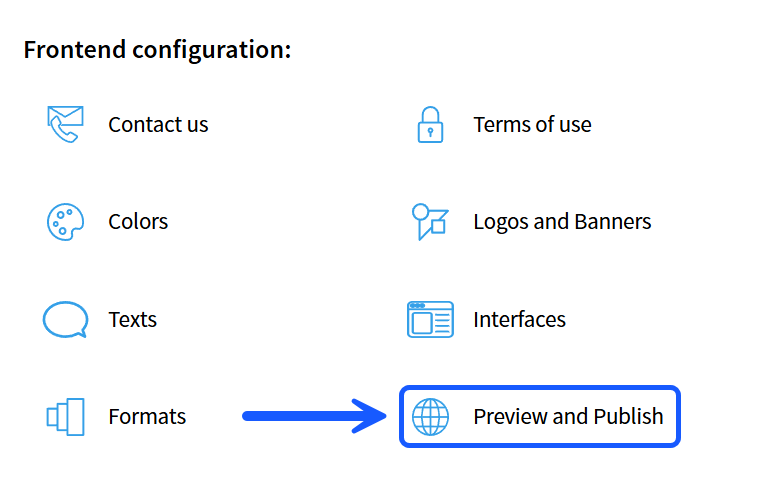
- Select «publishing».
- Publish the interfaces you have updated.
Tips
- Use the «default» tab if you want to update multiple interfaces at the same time.
- You can use different colors for different interfaces if you want different branding or visual profiles.
- Remember to publish after making changes, otherwise the updates will not be visible to users.