Files in Imageshop are sorted by default according to when they were uploaded to the image bank. The newest files are therefore displayed at the top of the screen. This makes it easy to verify that files you have just uploaded have been successfully added to Imageshop.
Change sorting in Imageshop admin
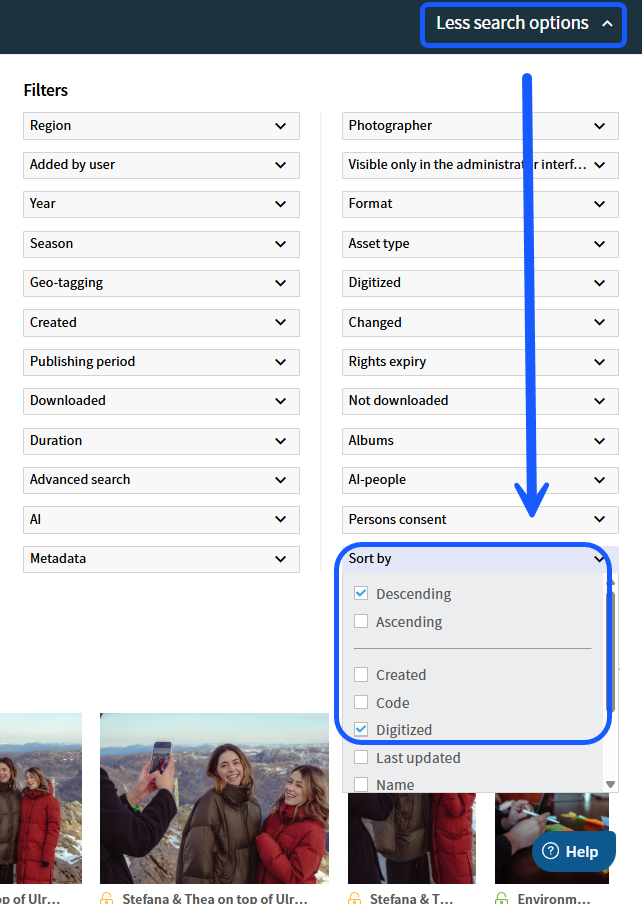
In Imageshop admin, you can change the sorting order yourself when performing a search.
- Click “More search options” on the right side of the menu bar.
- Choose the desired sorting criteria, for example:
- Digitization date
- Name
- If you select “Digitized” and then “Descending”, the newest files will be displayed first.
When you click “Clear search”, the sorting returns to the default setting: Upload time – descending.
It is also possible to change the default sorting to Digitization date – descending. Contact Imageshop if you would like this to be activated.
Sorting using groups
For more advanced sorting, you can create custom sorting groups. This allows you to:
- Organize files into groups
- Change the order of the groups
- Move files within groups using drag & drop
This feature is not enabled by default. Contact Imageshop if you would like to use it.
How to use sorting groups
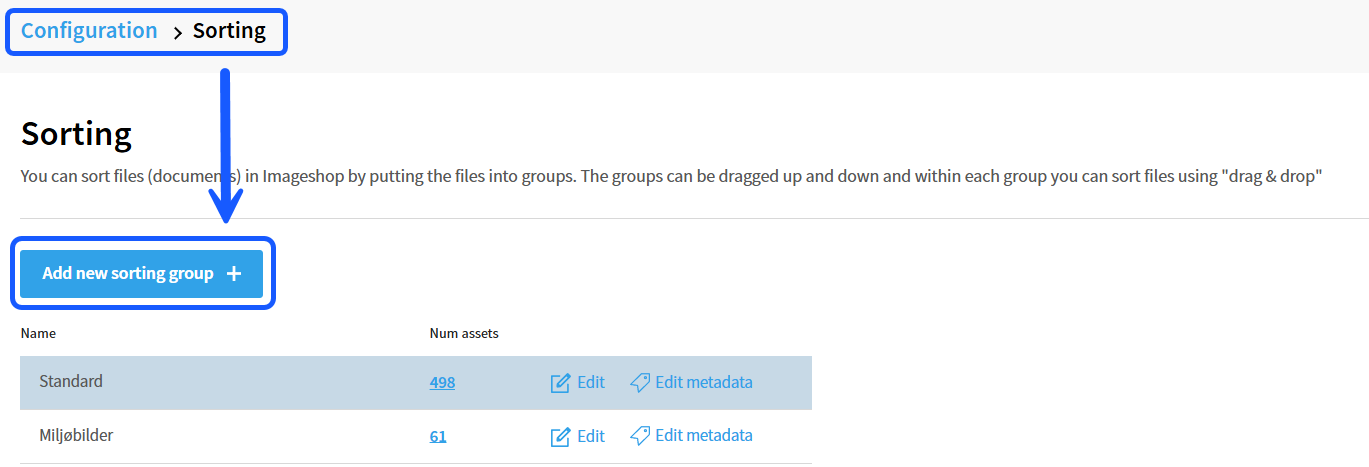
1. Create sorting groups
Go to:
Your name (top right) → Configuration → Sorting
Here you can create the sorting groups you want.
2. Change the order of the groups
You can reorder the groups using drag & drop.
- Drag the handle to the left of the group name
- Move the group up or down to the desired position
3. Move files into a sorting group
- Go to Home in Admin
- Select the files you want to move
- Click “Tag”
- Select the relevant files, or select all if all files should belong to the same group
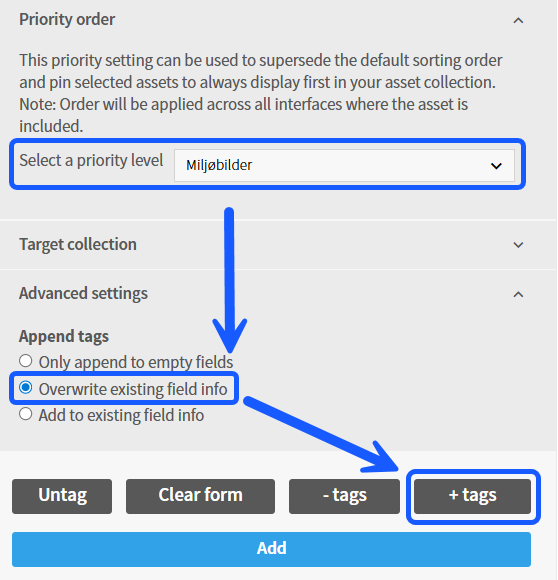
- Select the desired “Priority order” at the bottom left
- Select the name of the sorting group you want to move the files to
- Under Advanced settings, select:
- “Overwrite existing tagging”
- Click “+Tags” to move the files into the sorting group
Tip: You can also place files directly into a sorting group while uploading them to the image bank.
4. Change the order of files within groups
Go back to:
Configuration→ Sorting
Click “Number of files” in the sorting overview to display the files in the group.
Here you can:
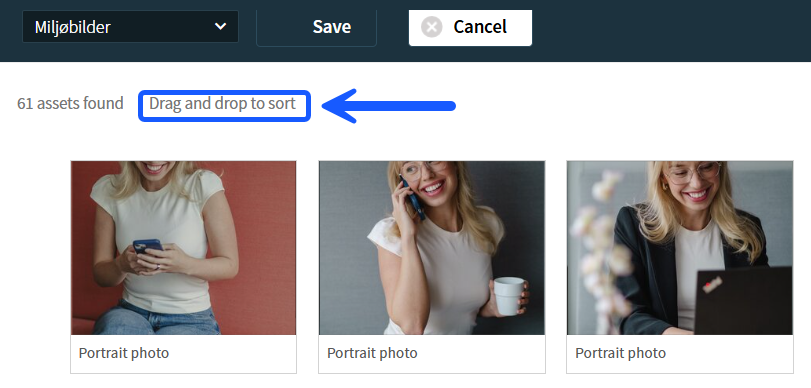
- Drag and drop files into the desired order
- Change the order manually
Click “Save” when you are finished.