When you upload transparent files to Imageshop, a gray and white checkerboard pattern is automatically added behind the image to make the content easier to see in thumbnails. However, this does not work well for transparent files with white elements. In these cases, both the image and the background may appear white, making the thumbnail difficult to view.
Solution: Add a Background Color to the Thumbnail
You can easily add a background color to the thumbnail without affecting the original file or downloadable versions of the image.
- Open the image details by clicking the “i” icon on the thumbnail.
- Click the blue “Edit thumbnail” button below the image.
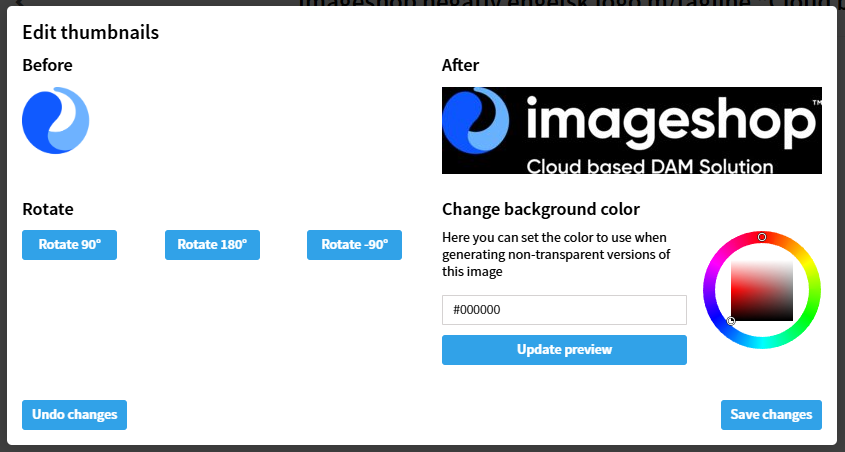
- Choose a background color, preview the thumbnail, and save your changes.
Example
In the example below, the logo text is white and therefore not visible against the white background.
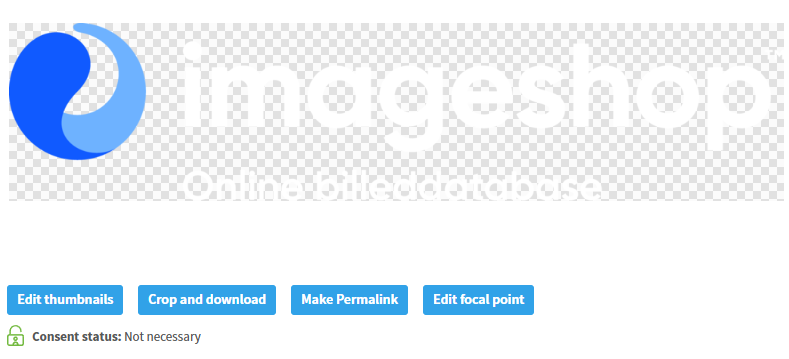
Click the blue “Edit thumbnail” button to open the editing tool, where you can add a background color, preview the result, and save the thumbnail.
Important to Know
- The changes only affect the thumbnail displayed in Imageshop.
- The original file remains unchanged.
- Downloaded versions of the image are not affected.