In the administration panel, you can easily filter out images that lack metadata or have not been properly tagged. Utilizing filters and proper search methods ensures high quality and optimal searchability across your image bank.
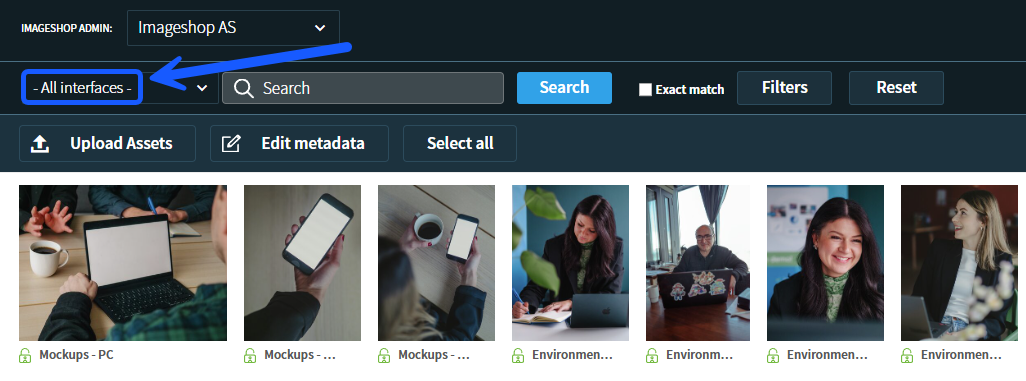
Selecting an Interface
Before starting your search, choose the interface you wish to work in. Your search results will be based on the media files belonging to the selected interface. You can choose to view media across all interfaces simultaneously, or filter the view down to one specific interface.
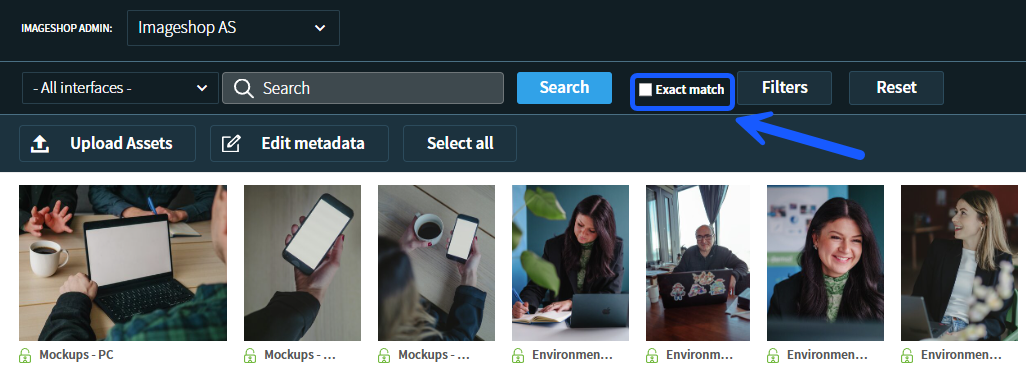
Using «Exact match» for more precise searches
If you perform a regular text search for a word like "sun", the system will also return results for longer keywords containing those letters (e.g., "Sunrise"). If you only want to find images tagged with that exact specific word, you must enable the «Exact match» button before searching. This ensures that only images matching the exact keyword appear.
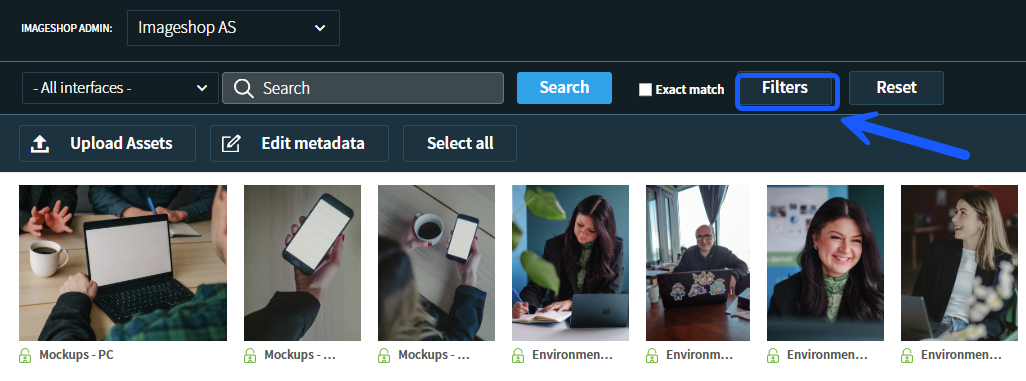
How to use «Filters»
The button that opens the filtering options is now called «Filters» (this is the feature previously known as «More search options»). Here, you will find tools to capture images that are missing critical information, as well as various options to easily find exactly what you are looking for.
- Log in to the administration panel at admin5.imageshop.no.
- Click on the «Filters» button at the top of the page to open the menu.
- Navigate to the dropdown menu and click on your preferred filter option, for example «Advanced search».
- Select the criteria you wish to filter by. For instance, if using advanced search, you can choose to list images that are missing a:
- Name
- Description
- Credit
- Photographer
- Click the «Search» button. You will now see an overview of all images matching the criteria you selected, allowing you to easily view or update them.
Tip: If you wish to close the filter menu again to free up screen space, simply click the «Filters» button a second time.
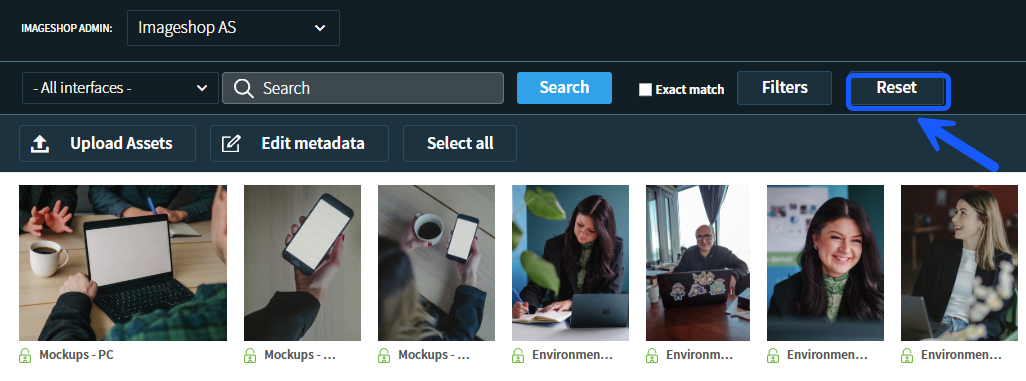
Always remember to use «Reset»
Have you finished a search and wish to start a new one? Or are you finding that a new search yields unexpected or incorrect results? Keep in mind that your active filters remain applied in the background until they are manually reset. To avoid conflicting search criteria, you should therefore always click the «Reset» button before starting a new search query.